To stop tech neck fast, start by adjusting your monitor to eye level using risers or stacked books, so you don’t tilt your head forward. Position your keyboard and mouse at elbow height with wrists straight, and sit with your feet flat on the ground. Sit upright with your back supported and relax your shoulders. Incorporate simple neck stretches and posture checks throughout the day. Keep going for more tips to maintain comfort and prevent strain.
Key Takeaways
- Position your monitor at eye level to prevent head tilt and keep it about an arm’s length away.
- Adjust your chair height so your hips are level with your knees and support your lower back.
- Keep your feet flat on the ground or on a footrest to promote proper posture.
- Set your keyboard and mouse at elbow height with wrists neutral to reduce strain.
- Incorporate quick neck stretches and shoulder rolls every hour to relieve tension and maintain comfort.
Why Poor Posture Causes Tech Neck and Discomfort
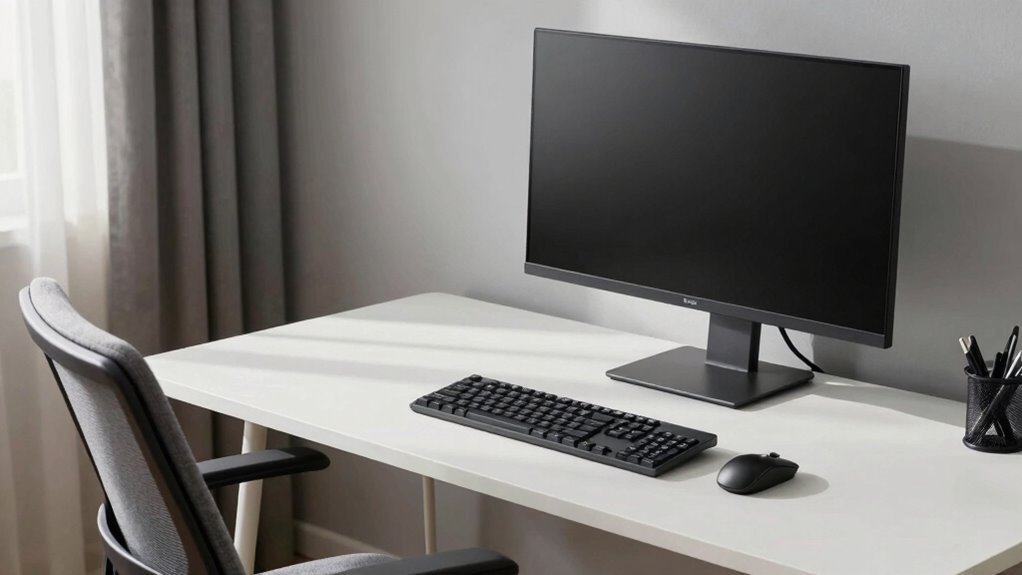
Poor posture is a leading cause of tech neck and related discomfort because it puts unnecessary strain on your neck and shoulders. When you slouch or crane your neck forward, you create added stress on your cervical spine, leading to pain and stiffness. Using ergonomic accessories, like adjustable monitor stands and ergonomic chairs, helps promote proper alignment. These tools encourage better posture awareness, reminding you to sit upright and keep your screen at eye level. Without paying attention to your posture, even short periods of poor positioning can cause muscle fatigue and long-term issues. Incorporating Nordic-inspired routines that emphasize mindful movement and relaxation can further support neck health. By investing in ergonomic accessories and consciously maintaining good posture, you reduce strain and prevent tech neck from developing. Staying aware of your posture is key to avoiding discomfort and maintaining long-term neck health.
Quick Desk Adjustments for Instant Relief
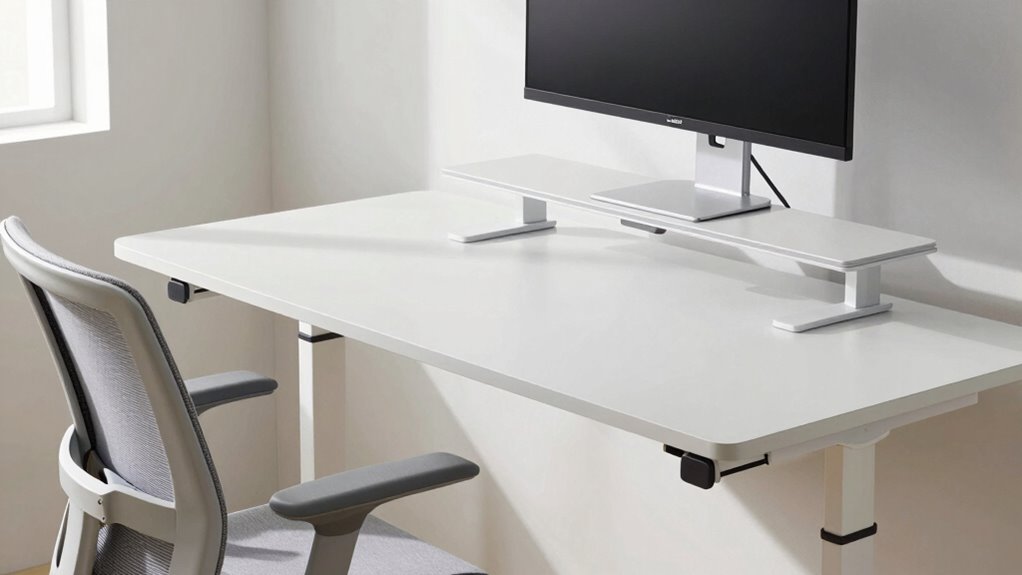
You can instantly reduce neck strain by adjusting your chair to sit upright with your feet flat on the floor. Make sure your monitor is at eye level so you don’t tilt your head forward or backward. These quick tweaks can provide immediate relief and improve your overall comfort. Incorporating proper ergonomic principles into your setup can help prevent long-term discomfort. Additionally, taking short breaks to stretch and move can further prevent strain and promote better posture throughout your workday. Using smart thermostat protocols to maintain a comfortable room temperature can also help reduce physical tension caused by environmental factors. Maintaining good posture habits outside of work can further support your musculoskeletal health.
Ergonomic Chair Positioning
Adjusting your chair to the right height can make an immediate difference in preventing neck strain. Sit back fully in your ergonomic chair, ensuring your hips are level with your knees. Your lumbar support should snugly fit the curve of your lower back, promoting proper posture. Adjust the chair height so your feet rest flat on the floor and your thighs are parallel to the ground. Keep your shoulders relaxed and avoid hunching forward. If your chair has armrests, set them so your arms rest comfortably without elevating your shoulders. Proper positioning reduces strain on your neck and shoulders, helping you maintain a neutral spine throughout the day. Small adjustments now can prevent long-term discomfort and keep you feeling more comfortable during work. Incorporating a comfortable and supportive chair is essential for proper posture, which can significantly reduce the risk of developing “tech neck” over time. Additionally, selecting an ergonomic chair with adjustable features can further enhance your sitting comfort and support healthy spinal alignment. Regularly taking short breaks to stretch and adjust your posture can also help prevent musculoskeletal issues, especially when combined with awareness of early warning signs of neck strain, which can be caused by prolonged poor ergonomics.
Monitor Height Optimization
To prevent neck strain, ensuring your monitor is at the correct height is essential. Proper monitor placement means your screen should be at eye level alignment, so you don’t have to tilt your head up or down. Adjust your monitor height so the top of the screen is roughly even with your eyes. This minimizes unnecessary neck movement and helps maintain good posture throughout your workday. Use a monitor stand or stack books if needed to achieve the right height. Keep your monitor about an arm’s length away for ideal viewing. Additionally, maintaining an ergonomic workspace helps prevent discomfort during long hours. Incorporating proper ergonomics into your setup can further enhance comfort and reduce fatigue. By making these quick adjustments, you’ll reduce the risk of tech neck and feel more comfortable, even during long hours at your desk. Proper monitor height is a simple, effective way to protect your neck instantly.
Raise Your Monitor to Eye Level
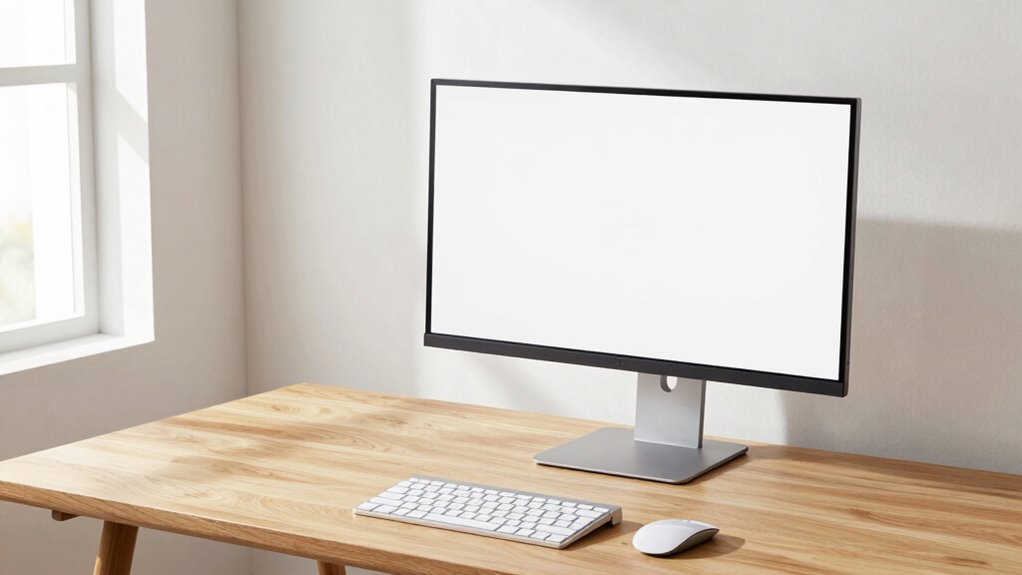
Keeping your monitor at eye level is essential to prevent neck strain and maintain good posture. When your screen is too low or high, you tend to crane or tilt your neck, causing discomfort. Use ergonomic accessories like monitor risers or adjustable stands to elevate your display. Incorporate posture reminders, such as sticky notes or apps, to stay mindful of your alignment. Here’s a quick guide:
| Adjustment Type | Recommended Height | Tools to Help |
|---|---|---|
| Monitor Placement | Eye level, directly in front | Ergonomic accessories, risers |
| Neck Position | Neutral, relaxed | Posture reminders |
| Viewing Distance | About arm’s length | Adjustable stands |
Additionally, ensuring your workspace setup considers whole-home water system factors can improve overall comfort and health. Proper setup guarantees comfort and helps avoid tech neck, making your workspace healthier. Paying attention to ergonomic principles can further enhance your posture and reduce discomfort during long periods of work. Regularly adjusting your monitor height can also prevent fatigue and promote better circulation.
Position Your Keyboard and Mouse for Comfort
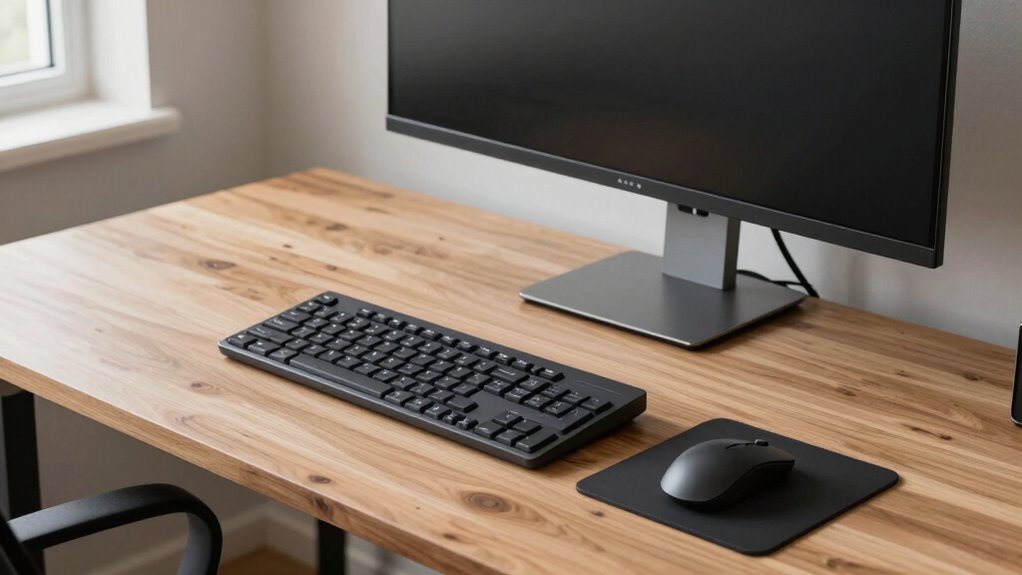
To stay comfortable, keep your wrists neutral and avoid bending them up or down. Make sure your keyboard is at elbow height so your arms stay relaxed, and use arm supports if needed. Proper positioning reduces strain and helps prevent discomfort during long work sessions. Additionally, maintaining ergonomic principles can further optimize your setup and reduce the risk of repetitive strain injuries, such as proper posture awareness, which is crucial for long-term health. Incorporating adjustable equipment allows for personalized comfort and better alignment, minimizing muscle tension. Being mindful of ergonomic adjustments can also enhance overall comfort and support sustained productivity. Paying attention to workspace organization can further improve your ergonomic setup and promote better posture throughout the day.
Keep Wrist Neutral
Ensuring your wrists stay in a neutral position is key to preventing strain and discomfort. Proper wrist alignment and hand positioning help reduce fatigue and avoid repetitive strain injuries. To keep your wrists neutral:
- Keep your keyboard and mouse at a height that allows your wrists to remain straight, not bent up or down.
- Use a wrist rest if needed to support your wrists without elevating or lowering them.
- Position your hands so that your wrists are aligned with your forearms, avoiding any angles that cause twisting or bending.
- Choosing the right equipment such as ergonomic keyboards and mice can further promote neutral wrist positioning and enhance overall comfort. Additionally, paying attention to ergonomic workspace design can significantly reduce the risk of discomfort. Incorporating proper ergonomic principles into your workspace setup ensures sustained comfort and reduces strain.
Maintaining correct hand positioning prevents unnecessary tension. Remember, your goal is to keep your wrists relaxed and in line with your forearms, reducing strain and promoting comfort throughout your workday.
Align Keyboard Height
Positioning your keyboard and mouse at the right height helps maintain proper wrist alignment and reduces strain. To achieve ideal keyboard alignment, ensure your keyboard sits so that your wrists remain straight when typing. Your elbows should be close to your body and bent at about a 90-degree angle, preventing your wrists from bending upward or downward. Adjust your keyboard height so that the keys are level with your forearms, promoting comfortable wrist positioning. Avoid slouching or reaching for your mouse, as this can cause unnecessary tension. Keep your wrists in a neutral position, neither flexed nor extended, to prevent discomfort and long-term injury. Proper keyboard height promotes better posture and reduces the risk of tech neck caused by awkward arm and wrist positions. Additionally, incorporating regional flavors and chicory/coffee insights can create a more comfortable and enjoyable workspace environment, fostering overall well-being.
Use Arm Support
Using arm support can considerably improve your comfort and reduce strain during long work sessions. Proper armrest support helps keep your shoulders relaxed and your wrists in a neutral position. To maximize comfort, consider these ergonomic accessories:
- Adjust your chair’s armrests so your elbows are at a 90-degree angle, with your forearms supported.
- Use an ergonomic mouse pad with wrist support to minimize wrist strain.
- Position your keyboard so your arms rest comfortably on armrest supports, avoiding raised shoulders.
Set Up Your Chair and Feet Properly
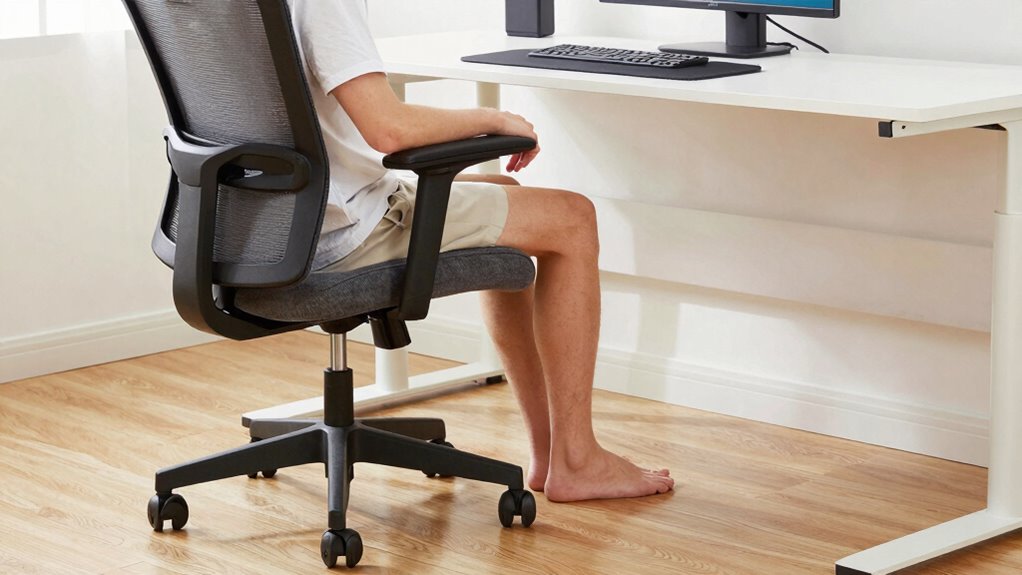
To set up your chair and feet properly, start by adjusting your chair height so your feet rest flat on the floor with your knees bent at about a 90-degree angle. Proper chair height guarantees your hips are level and your lower back is supported. Focus on foot placement—your feet should be firmly flat on the ground, not dangling or curled. If your feet don’t reach the floor comfortably, use a footrest. Keep your thighs parallel to the ground, which helps maintain good posture and reduces strain on your neck and shoulders. Avoid slouching or leaning forward. Adjusting your chair height and foot placement correctly creates a stable, ergonomic base, helping you stay comfortable and minimizing the risk of tech neck.
Simple Stretches to Ease Neck Tension

After adjusting your chair and foot placement for better posture, it’s important to incorporate simple stretches that release neck tension. These neck stretches help loosen tight muscles and reduce discomfort.
After improving your posture, try simple neck stretches to ease tension and boost comfort.
- Start with shoulder rolls: roll your shoulders forward and backward to relax shoulder muscles and improve circulation.
- Perform gentle neck stretches: tilt your head slowly side to side, holding each position for a few seconds to stretch neck muscles.
- Do slow neck rotations: turn your head slowly from left to right, keeping movements smooth to avoid strain.
These quick movements can make a big difference, easing tension and preventing stiffness. Regularly doing neck stretches and shoulder rolls keeps your neck relaxed and maintains better posture throughout your workday.
Avoid Common Posture Mistakes That Worsen Tech Neck
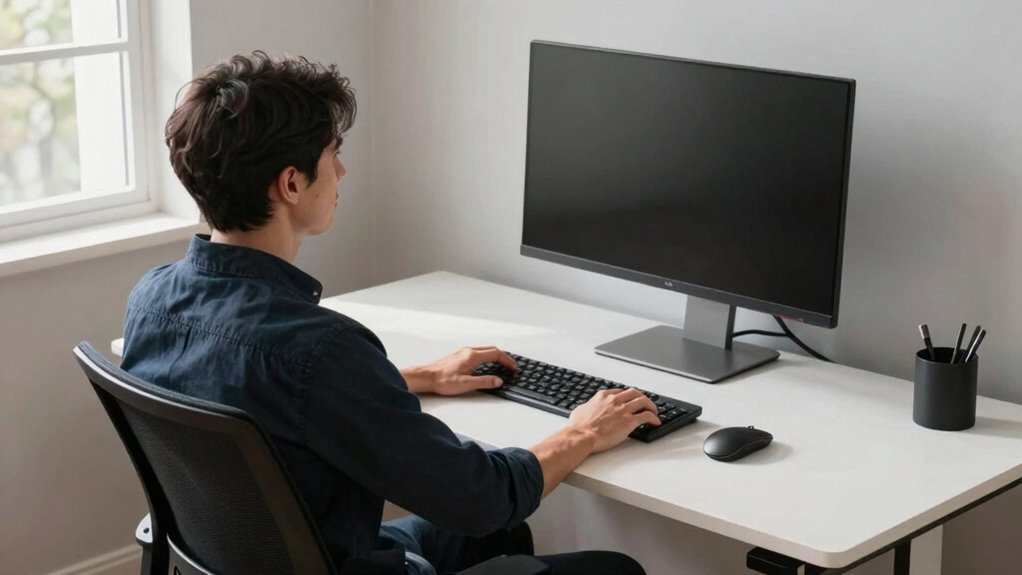
Many common posture mistakes can worsen tech neck symptoms, even if you’re trying to stay comfortable at your desk. Slouching or leaning forward puts extra strain on your neck, so avoid poor posture habits. Using ergonomic accessories like adjustable stands or keyboard risers helps keep your screen at eye level, preventing you from craning your neck. Don’t ignore the importance of maintaining neutral spine alignment; hunching your shoulders or tilting your head downward accelerates discomfort. Regularly checking your posture and making small adjustments throughout the day can prevent strain from building up. Remember, consistency is key—adopting proper posture habits now saves you from pain later. Avoid these mistakes, and your neck will thank you for it.
Tips to Maintain Good Posture All Day
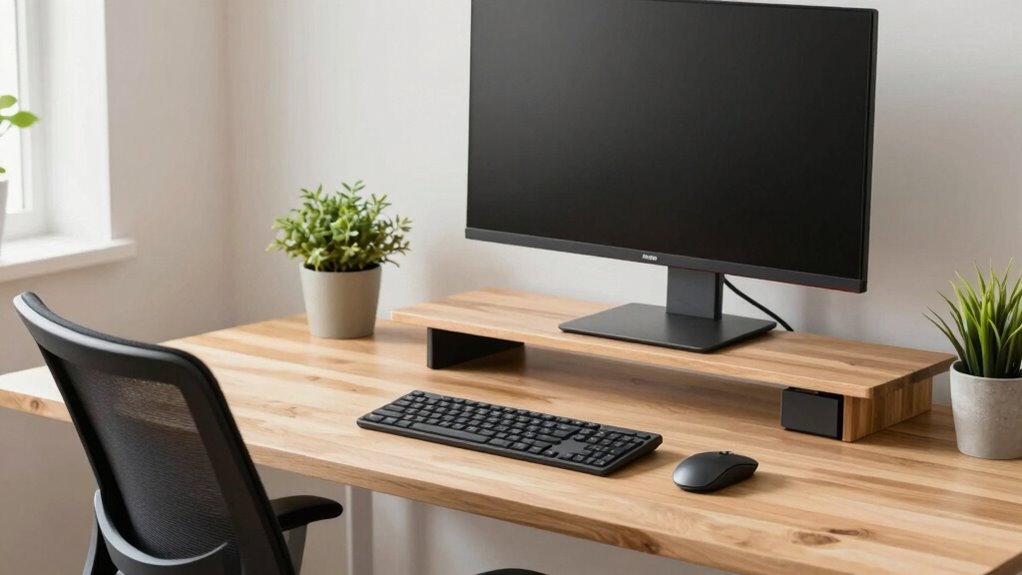
Maintaining good posture throughout the day requires consistent effort and mindful adjustments. To stay aligned, incorporate ergonomic accessories like adjustable chairs and monitor stands that promote proper positioning. Developing posture awareness helps you recognize when you’re slouching or straining your neck.
Here are three tips to maintain good posture all day:
- Regularly adjust your chair and monitor height to keep your eyes level with the screen.
- Take short breaks every 30 minutes to stretch and reset your posture.
- Practice mindful posture checks, ensuring your shoulders are relaxed and your back is supported.
Staying vigilant with these habits ensures your body stays comfortable and reduces the risk of tech neck.
Frequently Asked Questions
How Often Should I Adjust My Desk Setup During the Day?
You should adjust your desk setup at least once every hour to maintain proper ergonomics. Sit in your ergonomic chair, ensuring your feet are flat on the floor, and adjust your monitor to eye level. An adjustable monitor helps prevent neck strain, so tweak its height as needed. Regular small adjustments keep your posture healthy and reduce discomfort, especially during long work sessions. Stay mindful of your body’s signals and make quick tweaks frequently.
Can Specific Exercises Prevent Tech Neck Over Time?
Yes, specific exercises like neck stretches and posture exercises can prevent tech neck over time. You should regularly do neck stretches to loosen tight muscles and improve flexibility, especially after long periods of screen time. Incorporate posture exercises to strengthen your upper back and neck muscles, helping maintain proper alignment. Consistently practicing these exercises will reduce strain, alleviate discomfort, and promote better posture during your workday.
What Are Signs of Developing Severe Tech Neck Issues?
If you notice constant headaches, severe eye strain, and your head jutting forward like a turtle, you’re likely developing severe tech neck issues. Your posture correction efforts might be slipping, causing persistent discomfort and even nerve pain. Over time, this can lead to chronic shoulder and neck pain, restricted movement, and worsening eye strain. Stay aware of these signs, and address your posture early to prevent lasting damage.
Are Ergonomic Accessories Worth Investing in for Posture?
Yes, ergonomic accessories are worth investing in for posture improvement. They help align your body correctly, reducing strain on your neck, back, and shoulders. Items like adjustable chairs, monitor stands, and ergonomic keyboards encourage better habits, prevent discomfort, and can even lessen the risk of developing severe tech neck issues. Spending a little now on quality accessories can save you discomfort and health problems later, making them a smart investment.
How Long Does It Typically Take to See Improvement?
You’ll see improvement in your posture within a few days to a week after adjusting your ergonomic lighting and chair height. Consistently maintaining these changes helps reduce neck and back strain. Keep your monitor at eye level and sit with your feet flat on the floor. Regularly practicing these adjustments accelerates your progress, so stay mindful and make small tweaks as needed to reinforce good habits and prevent tech neck.
Conclusion
By making these quick changes, you’ll be back to work without the nagging discomfort. Remember, a little effort now saves a lot of pain later—don’t wait until you’re stuck in a bad posture rut. Keep your workspace aligned and take brief stretches often. When you prioritize your posture, you’re investing in your comfort and health. It’s a small step that can make a big difference—don’t let tech neck sneak up on you!