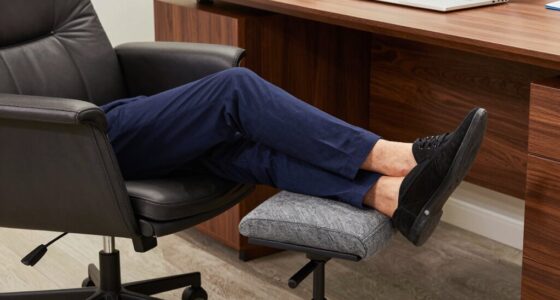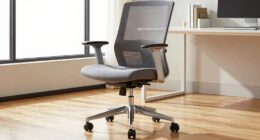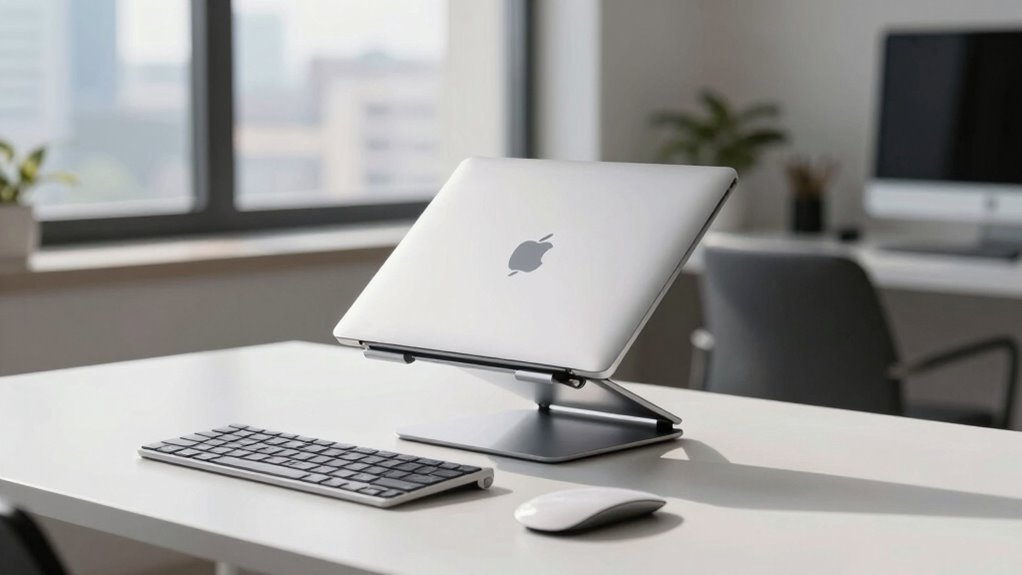

To save your neck today, start by elevating your laptop with a stand or stacked books so the top of the screen is at eye level. Use an external keyboard and mouse to keep your wrists straight and elbows at a comfortable 90-degree angle. Sit with good posture, support your lower back, and take breaks to stretch regularly. Keep your workspace organized and adjust your setup as needed—more tips to help you stay comfortable and healthy are just ahead.
Key Takeaways
- Elevate your laptop using a stand or stacked books to bring the screen to eye level and reduce neck strain.
- Use an external keyboard and mouse to maintain proper wrist and arm alignment.
- Adjust your chair so your feet are flat on the ground and your back is well-supported.
- Take regular breaks to stretch, move, and prevent muscle fatigue and poor posture habits.
- Keep your workspace organized and clutter-free to promote better ergonomics and comfort.
Why Working With a Laptop Alone Can Hurt Your Neck and Back
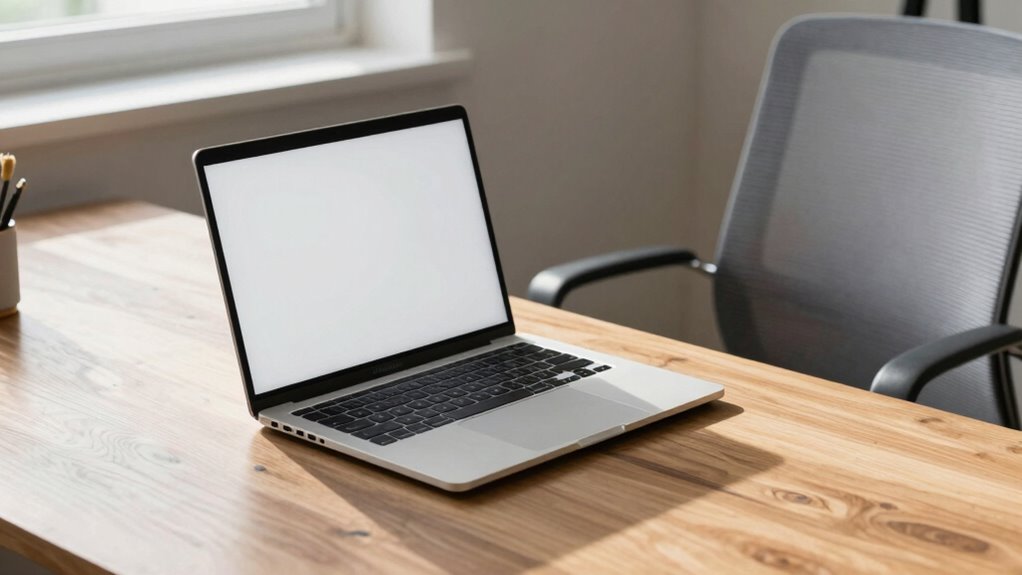
Working with a laptop alone often leads to poor posture because the screen is usually too low and the keyboard is cramped, forcing you to hunch over. This position puts unnecessary strain on your neck, causing discomfort and increasing the risk of neck strain over time. Poor posture habits can develop quickly when you’re focused on your work but neglect your ergonomics. Slouching or leaning forward to see the screen intensifies the pressure on your spine and neck muscles. Without proper support, your back also suffers, leading to aches and long-term issues. To protect yourself, it’s essential to be aware of your posture habits and make adjustments—like elevating your screen and sitting upright—to prevent neck strain and maintain a healthier workstation. Additionally, incorporating ergonomic home soundproofing solutions can help create a more comfortable and productive environment. Being mindful of ergonomic principles can further optimize your setup and reduce discomfort, especially since posture awareness is key to preventing long-term musculoskeletal problems. Incorporating regular stretching exercises can also alleviate tension and promote better alignment throughout your workday. Recognizing the importance of proper workstation setup can make a significant difference in maintaining comfort and preventing injury.
How to Quickly Create an Ergonomic Laptop Workspace
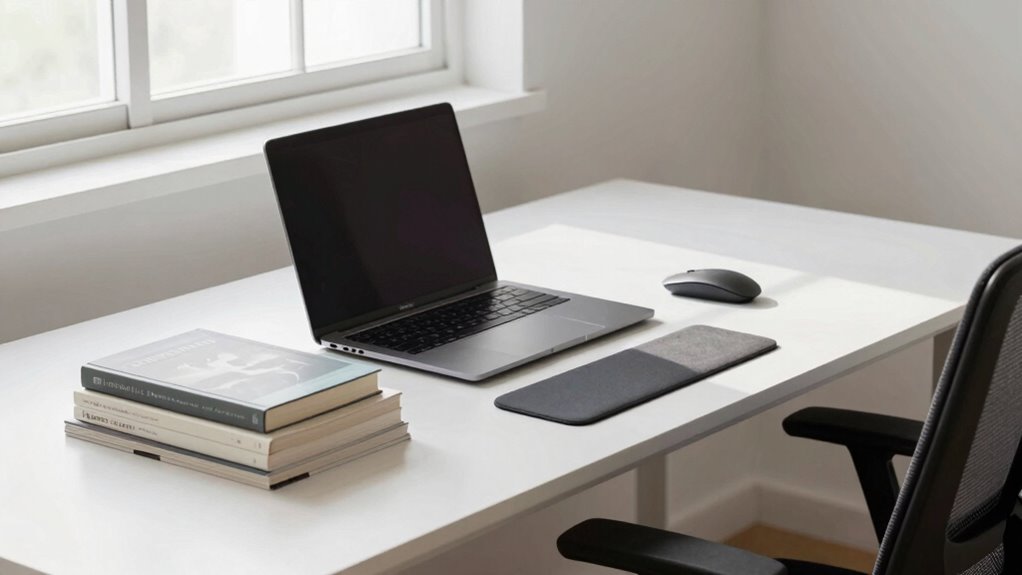
Setting up an ergonomic workspace for your laptop doesn’t have to be complicated or time-consuming. Because of laptop portability, you can easily create a comfortable spot anywhere. Start by choosing a stable surface at elbow height, ensuring your screen is eye level to prevent neck strain. Use a portable stand or stack books to elevate your laptop if needed. Keep your workspace organized by minimizing clutter and positioning your mouse and keyboard close to your laptop to reduce reaching. Additionally, incorporating indoor air quality tips, such as ensuring proper ventilation and reducing dust, can improve your overall comfort and health in your workspace. Improving environmental impact awareness can help you select eco-friendly accessories and materials for your setup. Incorporating household organization tips or decor can enhance your workspace’s ambiance and motivate you to maintain good posture. This quick setup helps you maintain good posture without investing in extensive equipment. By focusing on these simple adjustments, you’ll improve your comfort and productivity, all while making the most of your portable workspace. No fancy tools required—just a little organization and awareness.
Essential Equipment for a Comfortable Laptop Setup

To create a truly comfortable laptop setup, you’ll need the right equipment to support your posture and productivity. Focus on tools that enhance keyboard ergonomics and improve workspace organization. A portable external keyboard and mouse help keep your wrists aligned and reduce strain. An adjustable laptop stand elevates your screen to eye level, preventing neck pain. Good workspace organization minimizes clutter and distractions, boosting focus. Additionally, understanding the importance of ergonomic design can help guide your choices for a sustainable and comfortable setup. Recognizing posture alignment as a key factor in ergonomic design can further enhance your workspace comfort. Incorporating ergonomic principles into your setup ensures long-term comfort and reduces the risk of strain or injury. Being mindful of workspace ergonomics can make a significant difference in your daily comfort and productivity. Paying attention to Gold IRA markets insights can also inform long-term planning for financial stability beyond your workspace setup.
Common Mistakes When Setting Up Your Laptop Workspace
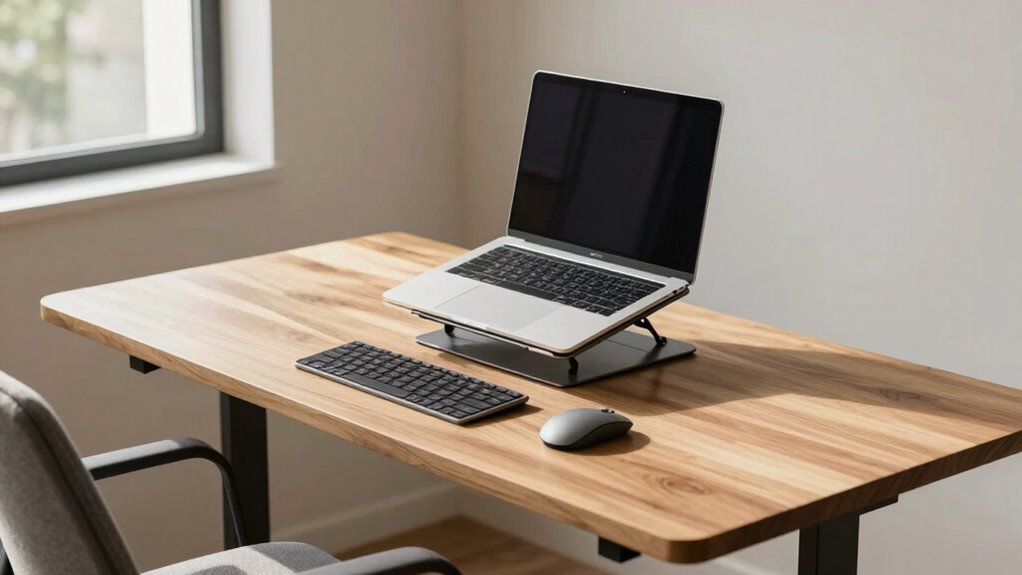
One common mistake is setting your screen at the wrong height, which can cause neck strain over time. Poor desk ergonomics, like an uncomfortable chair or cluttered workspace, also impacts your comfort and productivity. Avoid these pitfalls by paying attention to your setup and making adjustments for better support. Additionally, considering the color temperature adjustments of your workspace can help prevent long-term discomfort. Being aware of ergonomic principles can further enhance your workspace to promote health and efficiency. Ensuring your workspace properly supports your posture is crucial for reducing fatigue and preventing musculoskeletal issues. Incorporating capacity considerations when arranging your equipment can also optimize your workspace for extended use.
Improper Screen Height
When your laptop screen is positioned too high or too low, it can cause neck strain and discomfort during long work sessions. To avoid this, make sure your screen is at eye level. You can do this by:
- Using adjustable stands to raise your laptop to the correct height.
- Placing your laptop on monitor risers to achieve the proper viewing angle.
- Investing in a separate monitor at eye level for better ergonomics.
- Ensuring that the screen height aligns with your eye line to prevent unnecessary strain.
Maintaining the right screen height minimizes neck strain and helps you work comfortably. Avoid slumping or craning your neck by regularly checking your setup. Proper positioning keeps your neck aligned and reduces fatigue, making your workspace healthier and more efficient. Remember, small adjustments can greatly improve your comfort during extended work periods.
Poor Desk Ergonomics
Poor desk ergonomics often stem from common setup mistakes that can lead to discomfort and long-term health issues. One major mistake is neglecting proper keyboard posture, which can cause strain on your wrists and shoulders. Make certain your keyboard is at a height where your elbows stay close to your sides and your wrists remain straight. Additionally, chair support plays an indispensable role; sitting without proper lumbar support can lead to back pain and poor posture. Adjust your chair so your feet are flat on the floor, and your lower back is supported. Avoid hunching over your laptop or placing it too low. Proper desk ergonomics means creating a setup that promotes good keyboard posture and proper chair support, and ensuring your workspace encourages optimal posture, which can significantly reduce musculoskeletal issues during long work sessions. Including ergonomic accessories such as adjustable stands or supportive cushions can further enhance comfort.
Tips to Stay Comfortable and Productive All Day

To stay comfortable and productive all day, you need to focus on ergonomic positioning, proper screen height, and taking regular movement breaks. Adjust your setup so your monitor is at eye level and your wrists stay neutral to prevent strain. Remember to stand up and stretch frequently to keep your energy levels high.
Ergonomic Positioning Tips
Maintaining proper ergonomic positioning while working on a laptop can substantially boost comfort and productivity throughout the day. Focus on these key tips to improve posture awareness and arm positioning:
- Keep your back straight and shoulders relaxed, avoiding slouching or leaning forward.
- Position your arms so that elbows are close to your sides and form roughly a 90-degree angle, reducing strain.
- Use a supportive chair and make sure your wrists are straight when typing to prevent discomfort.
Proper Screen Height Setup
Setting your screen at the right height is vital for staying comfortable and avoiding neck strain during long work sessions. Proper monitor placement ensures you maintain neutral viewing angles, reducing the need to tilt or crane your neck. Your monitor should be positioned so the top of the screen is at eye level, with the screen about an arm’s length away. Use the table below to understand ideal viewing angles and monitor placement tips:
| Aspect | Recommendation |
|---|---|
| Top of screen | At or just below eye level |
| Viewing angle | 10-20 degrees downward |
| Distance | About an arm’s length |
| Tilt | Slightly backward for comfort |
| Monitor height | Adjust so neck stays relaxed and neutral |
Regular Movement Breaks
Taking regular movement breaks is essential for staying comfortable and maintaining your productivity throughout the day. These stretch breaks help reduce muscle tension and boost circulation. During each break, focus on posture awareness to prevent strain. Try these simple steps:
- Stand up and stretch your arms, neck, and legs to relieve tension.
- Shift your sitting position or walk around to promote better circulation.
- Perform quick posture checks, ensuring your back is straight and shoulders relaxed.
Incorporating these movements into your routine keeps your muscles active and prevents stiffness. Regular stretch breaks also help you stay alert and focused, reducing fatigue. Remember, staying mindful of your posture during breaks guarantees you maintain comfort all day long.
When to Upgrade Your Laptop Workspace for Better Health
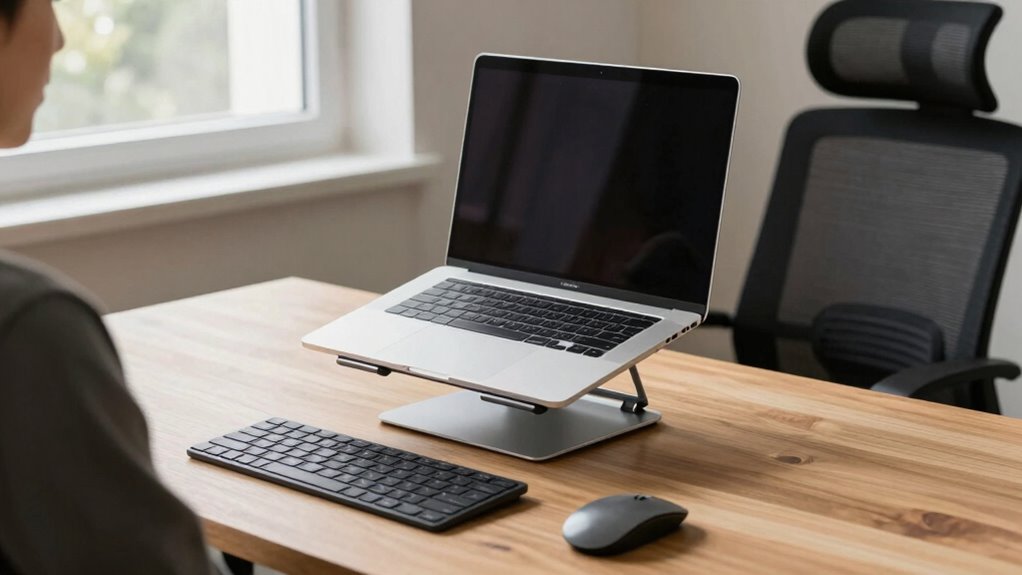
If you notice persistent neck, shoulder, or wrist pain, it’s a clear sign that it’s time to evaluate your laptop workspace. Start with an ergonomic assessment to identify issues and determine what adjustments are needed. If your current setup forces you into uncomfortable positions or causes strain, it’s time to consider workspace customization. Upgrading might mean investing in an adjustable laptop stand, an external keyboard, or ergonomic accessories that promote better posture. Don’t wait until pain worsens; proactive improvements can prevent long-term health problems. When your workspace no longer supports comfort and proper alignment, it’s a sign that a change is necessary. Prioritize your health by making these upgrades to create a more ergonomic environment that supports your well-being.
Frequently Asked Questions
Can Portable Laptop Stands Really Improve My Posture?
Yes, portable laptop stands can really improve your posture. They offer a portable design that helps elevate your screen to eye level, reducing neck strain. Plus, their stability features guarantee your laptop stays secure, even on uneven surfaces. Using one encourages better ergonomics, prevents discomfort, and promotes healthier habits when working on the go or at home. So, investing in a good portable stand is a smart move for your health.
How Often Should I Take Breaks During Laptop Work?
You should take a rest break every 30 to 60 minutes of laptop work to promote ergonomic pacing and prevent strain. Short, frequent breaks help you reset your posture, reduce eye fatigue, and improve focus. Stand up, stretch, or walk around during these intervals. Listening to your body and maintaining consistent rest break frequency guarantees you stay comfortable and avoid long-term health issues associated with prolonged sitting.
Are Ergonomic Keyboards Compatible With All Laptops?
You might wonder if ergonomic keyboards work seamlessly with your laptop. The truth is, most ergonomic keyboards are compatible with all laptops through standard USB or Bluetooth connections. But don’t assume—double-check your device’s compatibility and available ports. External keyboard options can substantially boost comfort, so investing in one tailored to your needs can prevent strain and boost productivity, making your workspace smarter and healthier.
What Signs Indicate My Workspace Is Causing Strain?
You might notice discomfort, like neck pain, shoulder tension, or eye strain, indicating your workspace causes strain. If your ergonomic seating doesn’t support good posture or your desk height forces you to hunch or stretch, it’s a sign you need adjustments. Pay attention to how your body feels after work; persistent aches suggest your workspace isn’t ergonomic enough, and tweaking your seating and desk height can help reduce strain.
Can Adjusting Screen Brightness Reduce Eye Strain?
Think of your screen as a window to your work world. Adjusting the brightness can cut down on screen glare and reduce eye fatigue, making your view more comfortable. When your screen is too bright or too dim, your eyes strain trying to focus. By fine-tuning the brightness to match your environment, you help your eyes relax, preventing unnecessary fatigue and keeping your focus sharp throughout the day.
Conclusion
Now that you know how a simple laptop setup can impact your health, aren’t you ready to make small changes today? By creating an ergonomic workspace, you’ll boost comfort and productivity without expensive equipment. Remember, your body deserves the right support—so why wait for pain to become a problem? Start adjusting your workspace now, and enjoy the benefits of a healthier, more comfortable workday every day.