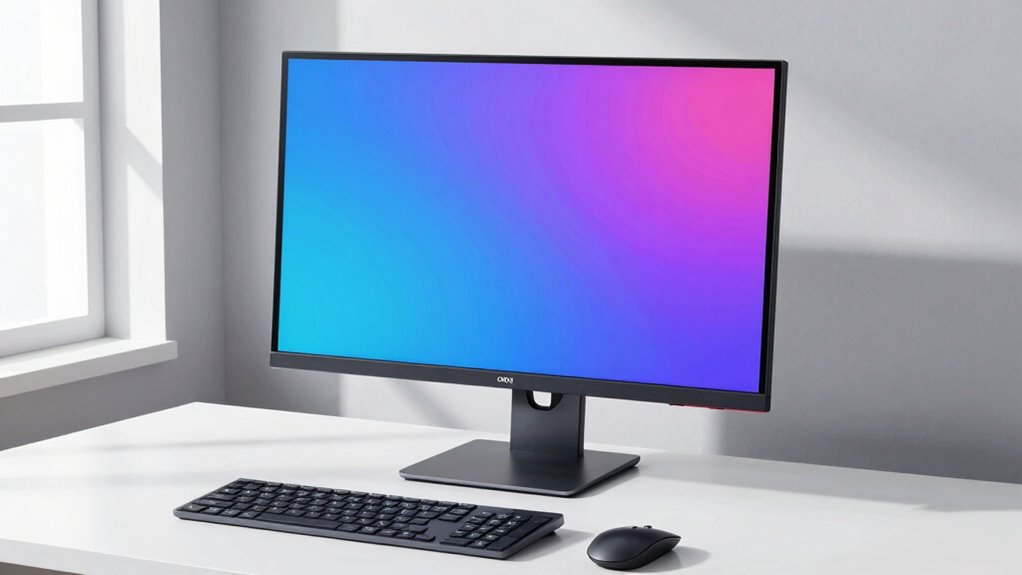

Most people set their monitor too low or too high, leading to neck and eye strain. The key measurement to fix is the monitor’s height—ensure the top of the screen is at or just below your eye level. When your eyes look straight ahead and slightly downward, it supports better posture and reduces discomfort. Adjusting this one aspect can make a big difference, and if you keep going, you’ll discover how to optimize your entire setup.
Key Takeaways
- Ensure the top of your monitor is at or just below eye level to prevent neck strain.
- Adjust monitor tilt so the screen is perpendicular to your line of sight, typically 10-20 degrees downward.
- Maintain an arm’s length distance (20-30 inches) from the monitor for optimal viewing comfort.
- Center the monitor directly in front of you to avoid awkward neck and eye movements.
- Regularly reassess and fine-tune your monitor height and tilt to sustain ergonomic alignment.
Why Monitor Height and Angle Are Key to Eye Comfort

Since your monitor’s height and angle directly impact how comfortably your eyes can view the screen, getting these right is crucial for eye comfort. Proper monitor calibration ensures your display is positioned to reduce strain, preventing headaches and fatigue. Screen calibration isn’t just about colors; it also involves adjusting the tilt and height so the top of the screen is at or slightly below eye level. When your monitor is correctly calibrated, you avoid awkward neck and eye positions that cause discomfort over time. An ideal setup minimizes reflections and glare, further easing eye strain. Remember, small adjustments in height and angle make a big difference in your overall comfort. Additionally, monitor positioning plays a vital role in maintaining ergonomic health during extended use. Proper ergonomic setup can significantly reduce the risk of repetitive strain injuries and promote better posture. Ensuring your monitor is correctly calibrated supports both visual comfort and long-term health. Regularly checking and adjusting your monitor’s screen alignment helps maintain optimal viewing conditions and prevents discomfort over time. Prioritize monitor calibration to create a workspace that supports your visual health and productivity.
How to Find the Best Monitor Height for Your Eyes
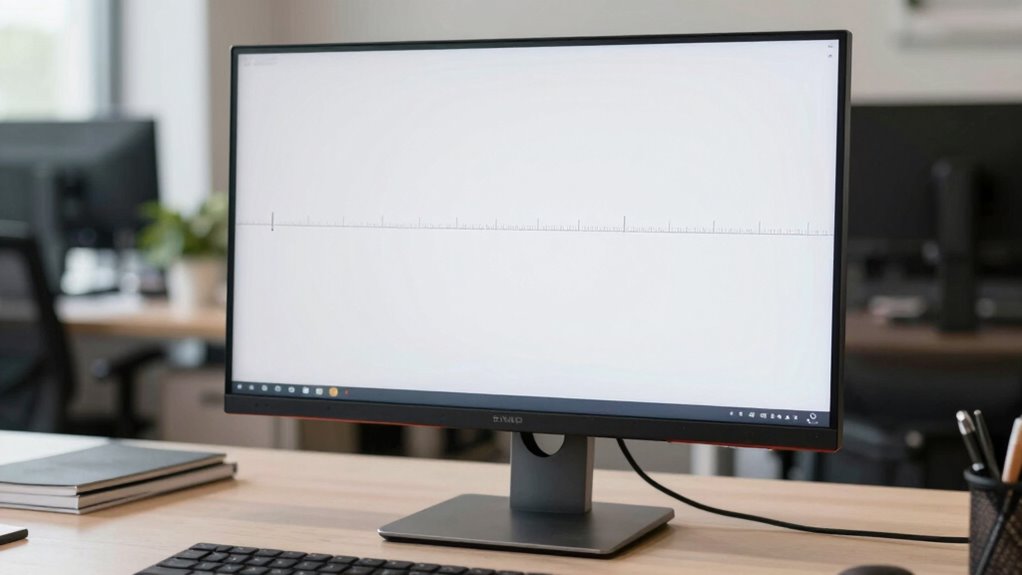
Finding the best monitor height for your eyes involves aligning the screen so that your line of sight naturally falls near the top third of the display. Start by adjusting the monitor height so that when you sit comfortably, your eyes look straight ahead, with your gaze slightly downward. Proper screen resolution helps you see details clearly without straining, so verify your display is set to the ideal resolution for your monitor. Additionally, color calibration ensures accurate visuals, making it easier to work for extended periods. Keep in mind that an ideal height reduces neck strain and prevents eye fatigue, allowing you to focus better. Regularly check and fine-tune your monitor height, resolution, and color calibration for a comfortable, efficient setup. Remember that proper monitor setup also includes ensuring your workspace is well-lit to reduce glare and reflections that can cause eye strain. Adjusting the ergonomic positioning of your monitor can further enhance comfort and reduce discomfort during long work sessions. To optimize your overall comfort, consider workspace lighting to minimize glare and improve screen visibility. Additionally, maintaining proper posture while working can significantly improve your overall comfort and reduce fatigue. Incorporating ergonomic accessories like monitor stands can help achieve the ideal monitor height more easily and sustainably.
How to Tilt Your Monitor to Reduce Neck Strain and Glare

Tilting your monitor to the ideal angle can considerably reduce neck strain and improve comfort. Aim for an angle around 10 to 20 degrees to minimize glare and keep the screen easily viewable. Adjusting the tilt properly helps create a more ergonomic setup and enhances your overall viewing experience. Additionally, ensuring your monitor is at the correct screen height can prevent future discomfort and promote better posture. Proper monitor alignment is essential for maintaining long-term neck health and reducing fatigue during extended use, especially when combined with an appropriate desk setup and ergonomic accessories. Being mindful of your ergonomic positioning can further optimize your workspace and support overall health. Incorporating regular breaks and stretches can also lessen muscle tension and promote better mind-body healing during long working hours.
Optimal Tilt Angle
Adjusting your monitor to the right tilt angle can considerably reduce neck strain and minimize glare. The ideal tilt usually positions the top of the screen slightly below eye level, allowing your neck to stay relaxed. To fine-tune your setup:
- Set the monitor so the screen is perpendicular to your line of sight.
- Angle the monitor back slightly to avoid reflections and glare.
- Ensure your monitor color calibration remains consistent, as improper tilt can distort perceived colors.
- Keep the monitor refresh rate high enough for comfortable viewing, which benefits from a stable, properly tilted position.
- Using a reliable connectivity setup, such as a high-speed SSD or a stable DSL connection, can help ensure your workspace remains efficient and free of lag or disruptions.
- Proper ergonomics in monitor placement not only enhances comfort but also helps prevent long-term musculoskeletal issues.
- Regularly monitor positioning assessments can help you maintain an optimal setup as your workspace evolves. Incorporating ergonomic accessories, like monitor risers or adjustable arms, can further improve your setup and comfort.
A well-tilted monitor reduces eye fatigue and supports better posture, especially when working long hours. Proper tilt, combined with ideal monitor calibration, ensures clear visuals and minimizes strain.
Minimize Glare Effect
To effectively reduce glare and prevent neck strain, you need to tilt your monitor carefully. Adjust the tilt so that the screen’s top is slightly farther back, aligning it with your eye level. This positioning minimizes reflections from ambient light sources and reduces blue light exposure. Proper screen calibration ensures colors are accurate, helping you identify glare spots easily. Use the following table to optimize your setup:
| Adjustment Aspect | Recommended Position | Benefits |
|---|---|---|
| Tilt Angle | Slight downward tilt | Less glare, reduces neck strain |
| Screen Position | Directly in front | Minimizes reflections and eye strain |
| Blue Light Filter | Enable or adjust | Protects eyes from harmful blue light |
Additionally, maintaining the correct monitor tilt can help prevent neck strain, promoting better posture during long work sessions. Proper tilt, combined with calibration, keeps your workspace comfortable and healthy, and understanding monitor ergonomics can further enhance your setup. Being aware of Gold IRA markets and their trends can also inform better investment decisions for your financial future. A well-adjusted monitor setup not only improves comfort but also contributes to your overall visual health and productivity.
Common Mistakes to Avoid When Setting Up Your Monitor
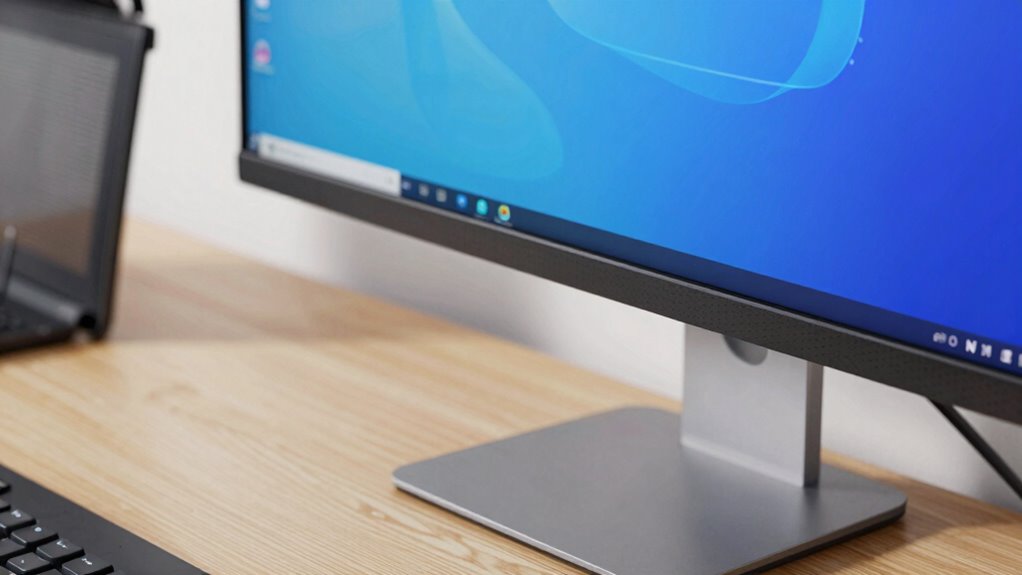
One common mistake people make when setting up their monitor is neglecting the importance of proper positioning. To prevent issues, keep these points in mind:
- Don’t ignore color calibration; it ensures accurate visuals and reduces eye strain.
- Avoid setting your monitor at an incorrect height; your eyes should be level with the top of the screen.
- Don’t forget to regularly clean your monitor; dust and smudges can distort colors and cause glare.
- Steer clear of improper distance; sit about an arm’s length away for ideal viewing comfort.
- Remember that ergonomic principles can help optimize your workspace for both comfort and productivity.
- Additionally, considering monitor placement can greatly improve your overall setup and reduce physical strain.
Step-by-Step: Adjust Your Monitor for Optimal Ergonomics
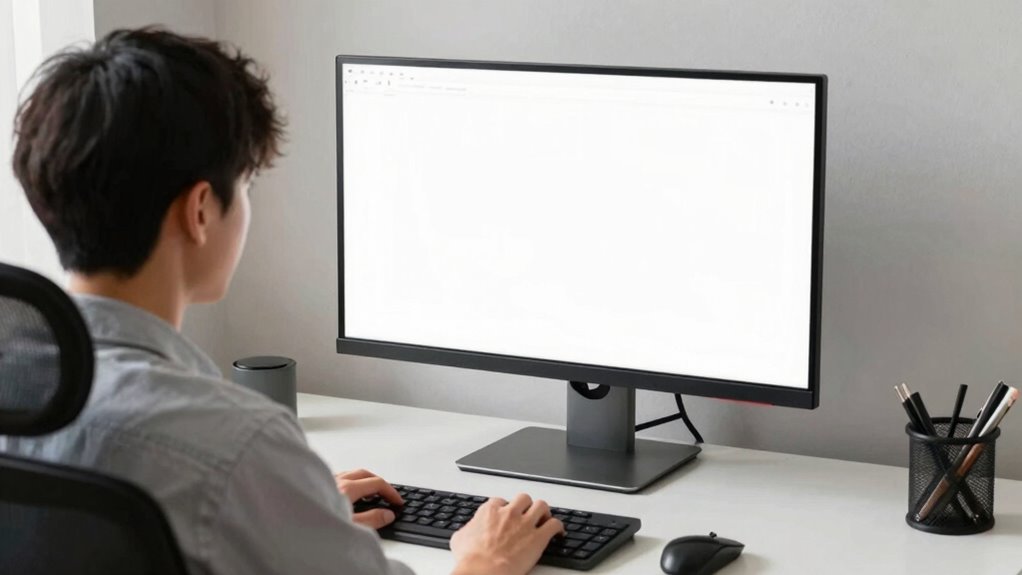
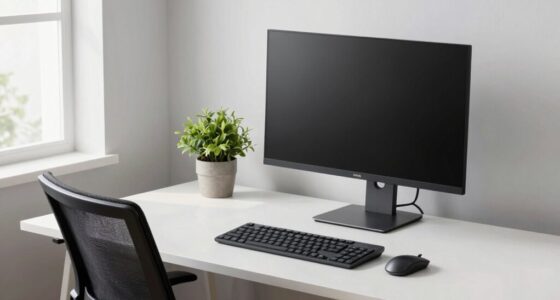
Ensuring your monitor is set up for ideal ergonomics starts with a proper initial positioning. Begin by calibrating your monitor to ensure accurate colors and brightness, which reduces eye strain. Next, adjust the screen resolution to match your monitor’s native setting; this guarantees sharp, clear images and prevents distortion. Position the monitor so that the top of the screen is at or just below eye level, about 20-30 inches away from your eyes. Keep the monitor centered directly in front of you, avoiding glare and reflections. Make small adjustments to tilt and height until you find a comfortable viewing angle. These steps optimize your monitor setup, reducing fatigue and improving productivity. Proper calibration and resolution are key to achieving the best ergonomic alignment.
Essential Tools and Accessories for Perfect Monitor Alignment

Achieving perfect monitor alignment becomes much easier when you have the right tools and accessories on hand. These help guarantee accurate monitor calibration and ideal screen calibration, preventing eye strain and color inconsistencies. Consider these essentials:
- Colorimeter or calibration device – Automates monitor calibration for precise color accuracy.
- Adjustable monitor stand or mount – Allows fine-tuning height, tilt, and orientation.
- Bubble level – Ensures your monitor is perfectly level for consistent alignment.
- Calibration software – Guides you through screen calibration and monitors color settings.
Using these tools, you can achieve a perfectly aligned monitor setup, improving visual comfort and productivity. Proper calibration and alignment are vital, especially for tasks demanding color precision or extended screen time.
Recognizing Signs Your Monitor Setup Is Causing Discomfort
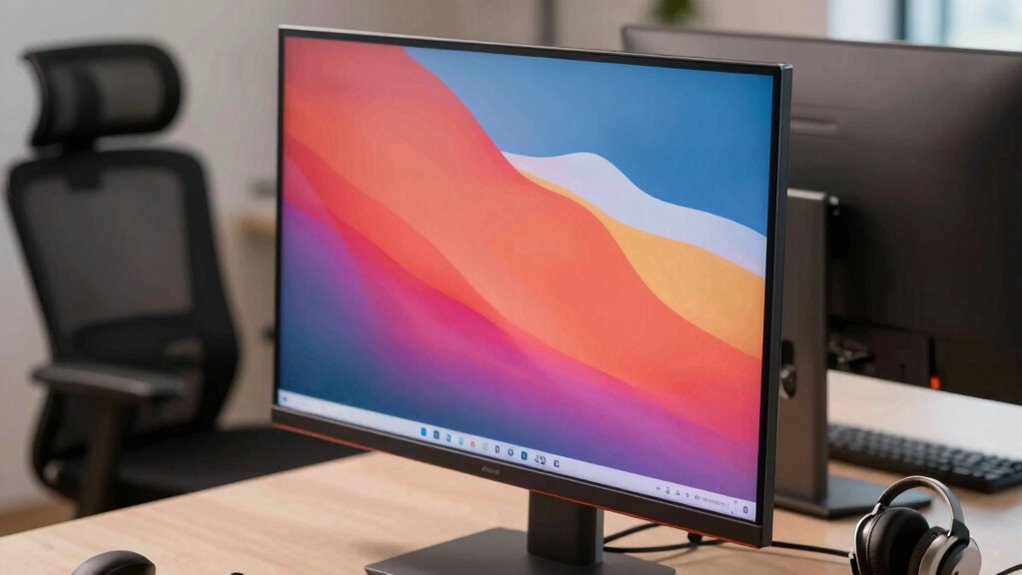
If your eyes feel tired or you experience headaches, your monitor setup might be causing eye strain. You might also notice neck pain or poor posture if your screen isn’t positioned correctly. Recognizing these signs helps you make necessary adjustments for comfort.
Eye Strain Symptoms
Eye strain is one of the most common signs that your monitor setup isn’t working for you. You might notice discomfort after long hours of work, such as headaches or blurred vision. Pay attention to these symptoms:
- Eye fatigue, feeling tired or dry after screen time
- Headaches, especially around the temples
- Blurred or double vision when focusing on the screen
- Sensitivity to bright lights or glare, worsened by blue light exposure
These signs often relate to poor screen resolution and inadequate blue light filtering. If your monitor isn’t properly calibrated, you might strain your eyes trying to read tiny text or poorly lit images. Adjusting your monitor’s brightness, contrast, and blue light settings can help reduce these symptoms.
Neck and Posture Issues
Poor monitor placement can lead to neck and posture discomfort, making you feel tense or sore after hours of work. If your monitor is too low or too high, you may strain your neck constantly, resulting in stiffness or headaches. An ergonomic desk setup encourages proper alignment, but your chair support also plays a vital role in maintaining good posture. When your chair supports your lower back and promotes an upright position, it reduces the tendency to hunch forward or crane your neck. Signs of issues include aching shoulders, frequent neck pain, or feeling tired even after short periods at your desk. Adjust your monitor height so that the top of the screen is at eye level, and ensure your chair supports your spine, helping you stay comfortable and prevent long-term posture problems.
Tips for Maintaining an Ergonomic Monitor Setup Over Time
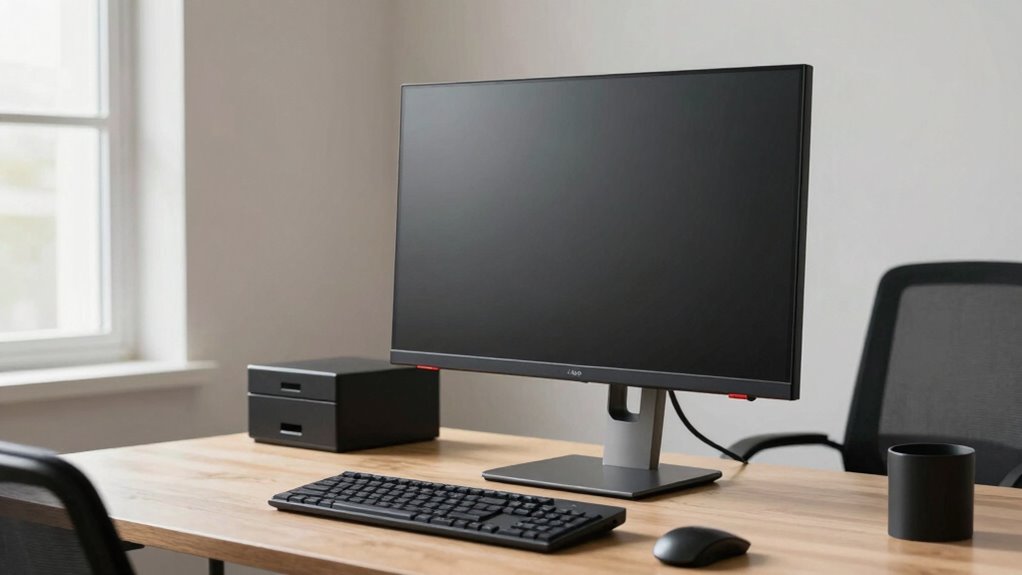
To maintain an ergonomic monitor setup over time, you need to regularly check and adjust your workspace. First, review your monitor calibration to ensure color accuracy and clarity. Second, adjust the screen brightness to match your environment, reducing eye strain. Third, verify your monitor’s position, keeping it at eye level and at a comfortable distance. Fourth, revisit your workspace lighting to prevent glare and reflections. These steps help sustain proper ergonomics and prevent discomfort. Regularly updating your monitor settings guarantees consistent visual comfort and reduces fatigue. By maintaining these adjustments, you’ll support your posture and eye health, making your workspace more efficient and comfortable over time.
Frequently Asked Questions
What Is the Ideal Monitor Height for Different Desk Setups?
You should set your monitor height so the top of the screen is at or slightly below eye level, regardless of your desk height. Adjust your desk height or monitor tilt to achieve this, ensuring your neck stays straight and comfortable. For different desk setups, use a monitor stand or riser if needed, so the screen remains aligned with your natural line of sight. This reduces strain and improves your posture.
How Often Should I Recalibrate My Monitor’s Position?
Ever wonder how often you should recalibrate your monitor’s position? You should do it whenever your workspace setup changes or if you notice discomfort. Regularly check your ergonomic accessories and perform monitor calibration every few months to maintain ideal comfort and posture. Don’t wait until discomfort strikes—staying proactive helps prevent strain and keeps your workspace ergonomic. How often? About every three to six months is a good rule of thumb.
Can Monitor Placement Affect Long-Term Vision Health?
Yes, monitor placement can influence your long-term vision health. Poor positioning may cause eye strain, especially if you experience screen glare or need frequent vision correction. Keeping your monitor at eye level, reducing glare, and maintaining a comfortable distance helps prevent eye fatigue and potential vision issues over time. Regularly adjusting your setup ensures your eyes stay comfortable, reducing the risk of long-term strain and supporting better eye health.
What Are Signs My Monitor Setup Is Causing Eye Strain?
If you notice headaches, dry eyes, or blurry vision, your monitor setup might be causing eye strain. Studies show that over 60% of people experience discomfort from prolonged screen time. Signs include eye fatigue, difficulty focusing, and sensitivity to blue light or screen flickering. To fix this, adjust the monitor’s position, reduce blue light exposure, and confirm flickering is minimized. Taking regular breaks also helps prevent long-term eye issues.
Are There Ergonomic Monitors Designed to Reduce Strain?
Yes, ergonomic monitors are designed specifically to reduce monitor strain. They feature adjustable height, tilt, and swivel options, helping you find a comfortable viewing angle. Some come with curved screens or blue light filters to lessen eye fatigue. Choosing an ergonomic monitor encourages better posture and minimizes strain, making your workspace more comfortable. Investing in one can considerably improve your comfort during long hours at your computer.
Conclusion
When you finally get your monitor just right, it’s like a small victory that quietly transforms your day. Sometimes, fixing that one measurement—your eye level—unlocks a world of comfort you didn’t realize you’d been missing. It’s a reminder that small adjustments can make a big difference, not just for your posture but for your focus and well-being. After all, isn’t it worth noticing the little things that keep you going smoothly?