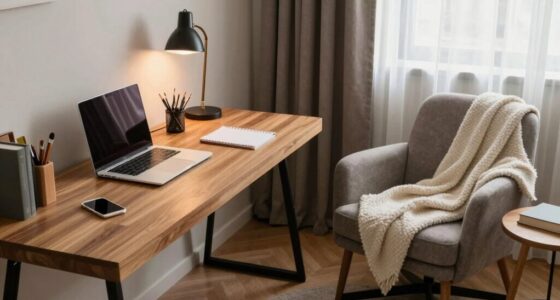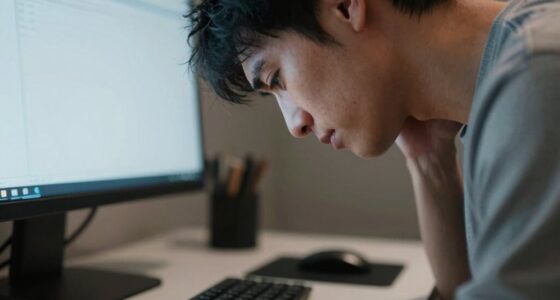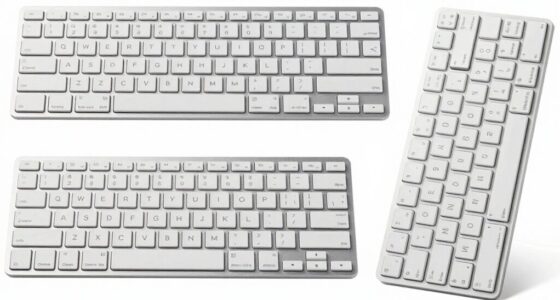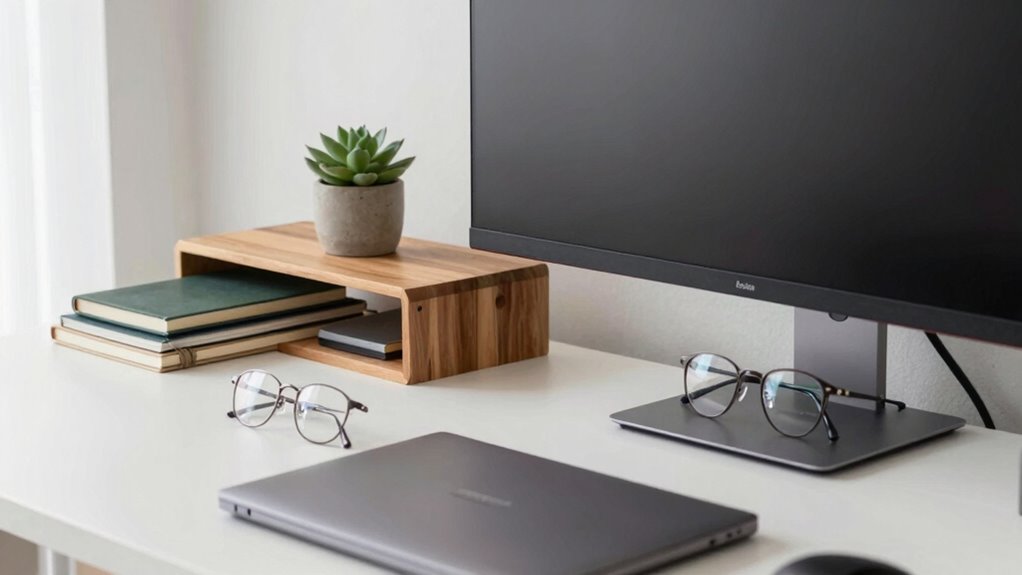
To stop leaning into your screen, properly adjust your monitor height and distance—aim for the top of the screen at or just below eye level and keep it about an arm’s length away. Set your chair and desk so your elbows form a 90° angle, and position your monitor directly in front of you. Use adjustable stands and good lighting to reduce eye strain. Keep your workspace organized, and consider ergonomic accessories to enhance comfort—more tips await if you continue exploring.
Key Takeaways
- Adjust monitor height so the top is at or just below eye level to prevent leaning forward.
- Keep the monitor an arm’s length away (20-30 inches) for clear, comfortable viewing.
- Use adjustable monitor stands to customize height and angle, reducing the need to lean in.
- Position lighting to minimize glare and reflections on glasses, encouraging proper posture.
- Organize your workspace so essentials are within reach, reducing the tendency to lean toward the screen.
Why a Proper Desk Setup Matters for Glasses Wearers
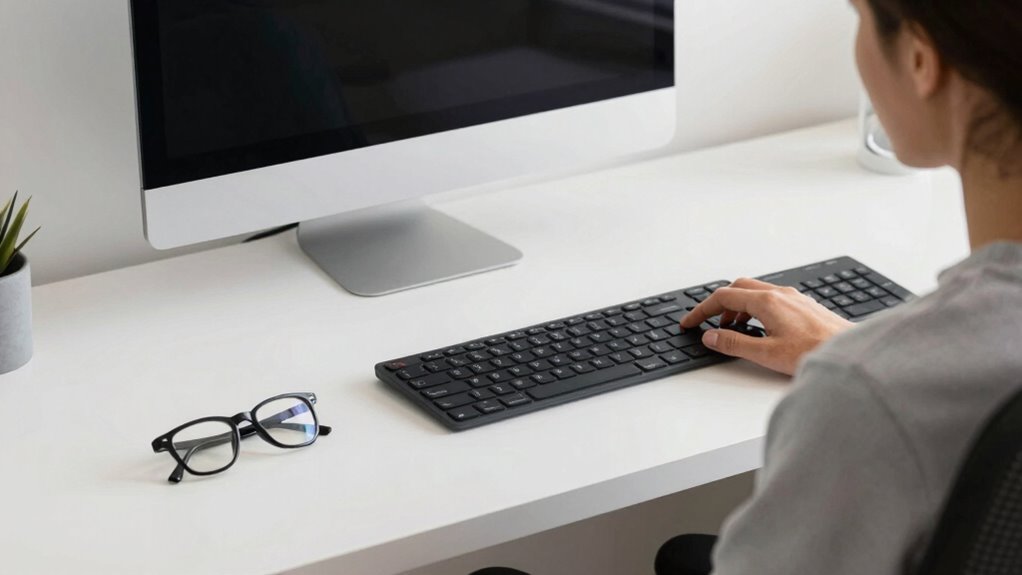
If you wear glasses, having a proper desk setup is vital for maintaining clear vision and preventing eye strain. A well-arranged workspace helps minimize the need for excessive frame reduction, which occurs when you lean forward to see better. Proper positioning reduces the strain on your eyes and guarantees your glasses work effectively. Glare mitigation is also essential; reflections from screens can cause discomfort and make it harder to focus. By adjusting your desk and monitor placement, you can limit glare and avoid squinting or leaning in. This setup not only protects your vision but also enhances your comfort and productivity. Investing in an ergonomic workspace tailored for glasses wearers is key to maintaining good eye health and working efficiently. Additionally, understanding the importance of ergonomic principles can help you create a more comfortable and health-conscious environment. Ensuring your monitor has the appropriate contrast ratio can further improve visual clarity and reduce eye strain during long hours of work. Proper lighting and screen brightness adjustments also play a crucial role in minimizing eye fatigue and promoting sustained comfort. Incorporating correct monitor height can help you maintain a neutral head position, reducing the tendency to lean forward. Moreover, considering adaptive lighting solutions can provide optimal illumination that complements your eye health needs.
How to Adjust Your Monitor Height and Distance for Clear Sightlines
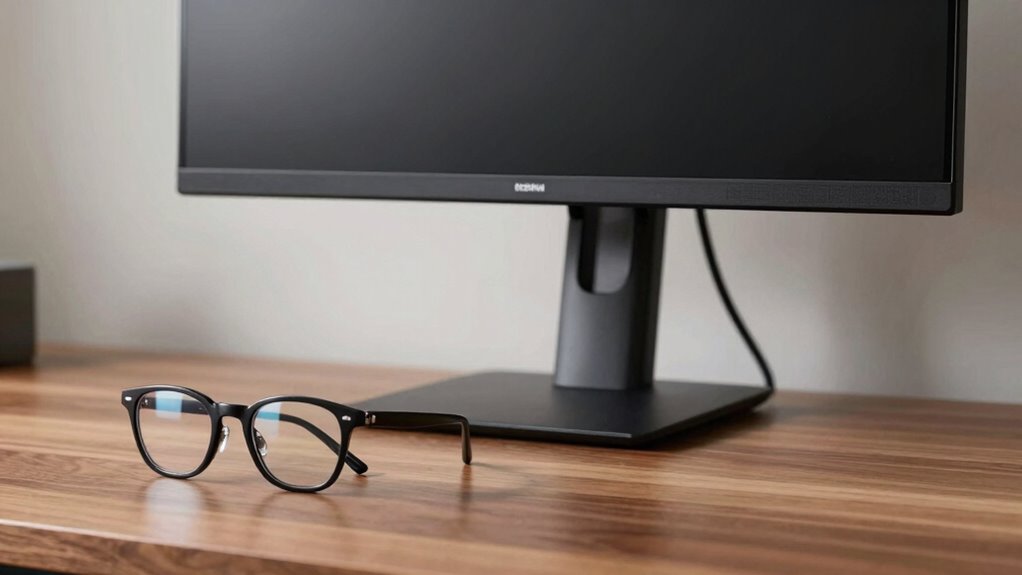
To get the best sightlines, you need to adjust your monitor so the top of the screen is at or just below your eye level. Keep the monitor an arm’s length away to reduce eye strain and guarantee comfortable viewing. Using an adjustable monitor stand makes it easy to find the perfect height and distance for your vision.
Eye Level Alignment
Ensuring your monitor is at the right height and distance is essential for comfortable viewing, especially when you wear glasses. Your monitor should be directly in front of you, with the top of the screen at eye level. This prevents unnecessary strain on your neck and eyes. When your monitor is properly aligned, you’re less likely to lean forward or tilt your head, reducing the risk of neck pain and improving your posture. Adjust the monitor’s height so your eyes naturally look downward at the screen’s center, minimizing blue light exposure and eye strain. Incorporate simple eye exercises during breaks to relax your eye muscles. Proper eye level alignment guarantees clear sightlines, reduces fatigue, and promotes overall comfort during long work sessions. Color theory for water/tile can also inspire calming visual environments that reduce eye fatigue. Additionally, paying attention to visual ergonomics can enhance your workspace setup and further decrease discomfort.
Optimal Viewing Distance
Adjusting your monitor’s distance from your eyes is just as important as setting its height. Ideally, position your screen about an arm’s length away, roughly 20 to 30 inches. This distance helps reduce eye strain and minimizes the need to lean forward, which can cause discomfort. When your monitor is properly placed, it also allows for better glare reduction, decreasing reflections that can cause eye fatigue. Incorporate blue light filters or glasses if you’re exposed to screens for long periods, as this can further safeguard your eyes. Keep the screen slightly below eye level to avoid strain from looking up or down. Regularly adjusting your distance and angle ensures clear sightlines, improves comfort, and supports your vision health during extended screen time. To further enhance safety and reliability, consider using weatherproof tool storage or power protection devices to prevent damage to your equipment during power fluctuations or adverse weather conditions. Additionally, maintaining proper ergonomic setup can help prevent long-term discomfort. For optimal eye health, also take regular breaks following the 20-20-20 rule—every 20 minutes, look at something 20 feet away for at least 20 seconds.
Adjustable Monitor Stands
An adjustable monitor stand makes it easy to customize your screen’s height and distance for ideal comfort and vision. Proper positioning prevents strain on your eyes and neck, especially important for glasses wearers. Set your monitor so the top of the screen is at or slightly below eye level, with about an arm’s length distance. Use ergonomic footrests to keep your feet supported and maintain a relaxed posture. Cushioned wrist supports help reduce discomfort during prolonged typing, ensuring your wrists stay neutral. Adjusting your monitor height and distance correctly minimizes the need to lean forward or backward, promoting better eye alignment. Incorporating proper tool usage and ergonomic setup tips can further enhance your comfort and prevent strain during long work sessions. Incorporating vehicle protection accessories can further enhance your workspace by reducing distractions and keeping your environment organized. With an adjustable stand, you can fine-tune your setup quickly, creating a more comfortable workspace that supports clear sightlines and reduces visual fatigue.
Setting Your Desk and Chair Height to Maintain Good Posture
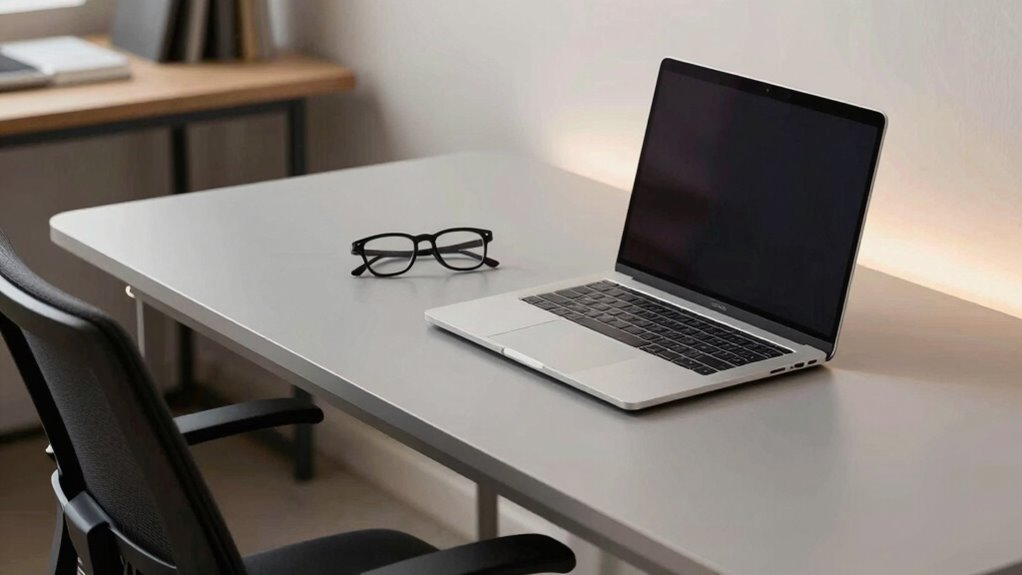
To maintain good posture, you need to set your desk and chair heights so that your eyes are level with the top of your computer screen and your feet rest flat on the floor. Proper desk ergonomics helps prevent strain and supports posture correction. Here’s how to do it:
- Adjust your chair height so your elbows form about a 90-degree angle when typing.
- Ensure your monitor is positioned at eye level to avoid leaning forward or tilting your head.
- Set your desk height so your wrists stay straight while typing, reducing wrist strain.
- Additionally, understanding the importance of posture correction can help you make more informed adjustments for comfort and health. Incorporating regional flavors and insights from different cultures can also inspire ergonomic setups tailored to your preferences, emphasizing ergonomic best practices for diverse needs. Being mindful of individual body differences ensures your ergonomic setup supports your unique physique and reduces discomfort, and paying attention to ergonomic accessories can further enhance comfort and efficiency.
How to Choose Lighting That Reduces Eye Strain for Glasses Users
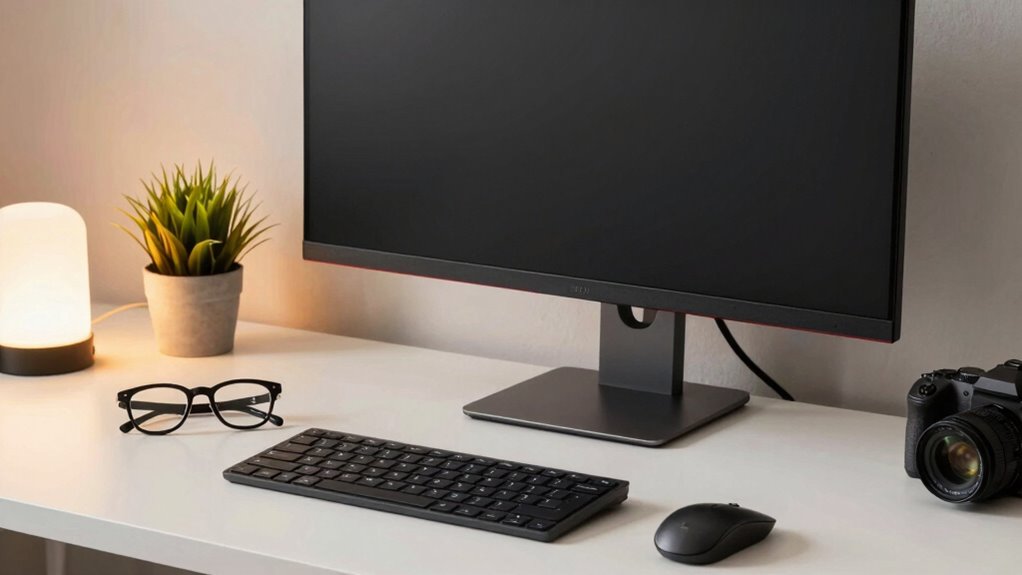
Choosing the right lighting can make a big difference in reducing eye strain when you wear glasses. Opt for warm, soft lights that create a comfortable environment and avoid harsh overhead lighting that can cause glare. Make sure to position your lights properly to minimize reflections and shadows on your screen. Additionally, using appropriate lighting can help prevent fire hazards associated with improper electrical setups.
Use Warm, Soft Lighting
When selecting lighting for your desk, warm and soft illumination can considerably reduce eye strain, especially for glasses wearers. Soft lighting creates a gentle glow that minimizes harsh shadows and glare, making it easier to focus without fatigue. To optimize your setup, consider these tips:
- Use lamps with warm-colored bulbs (around 2700K) for ambient illumination that feels inviting and reduces eye stress.
- Avoid bright, direct overhead lights; instead, opt for adjustable desk lamps to control light intensity and direction.
- Incorporate diffusers or lampshades to soften the light further, creating a comfortable environment that supports your vision needs.
- Selecting the right bedding and sleep tools can also improve overall comfort, reducing eye fatigue caused by poor sleep quality.
Prioritizing warm, soft lighting helps you work longer without discomfort and minimizes strain on your eyes.
Avoid Harsh Overhead Lights
While warm, soft lighting reduces eye strain, harsh overhead lights can counteract those benefits by creating glare and strong shadows. To minimize glare reduction issues, opt for ambient lighting that evenly illuminates your workspace without direct exposure to your eyes or screen. Avoid bright, unfiltered ceiling lights that cast unflattering shadows or cause reflections on your glasses. Instead, choose diffused lighting options like LED fixtures with dimmable settings or lamps with adjustable shades. Position lights so they don’t shine directly into your eyes or reflect off your monitor. Proper ambient lighting reduces eye fatigue and helps you maintain a comfortable viewing environment. Additionally, lighting control options can help you fine-tune your workspace lighting to better suit your needs. Using glare reduction techniques can further enhance visual comfort during long work sessions. Good lighting practices are essential for visual ergonomics, ensuring that your workspace minimizes strain and promotes overall comfort. Incorporating adjustable light positioning can also help you achieve the ideal lighting angles for reduced glare and reflections. Paying attention to natural light sources can also improve overall lighting quality and reduce reliance on artificial lights.
Position Lights Properly
To reduce eye strain, it is crucial to position your lights so they provide even illumination without causing glare or reflections on your glasses. Proper lighting placement minimizes eye fatigue and improves focus. A well-curated setup can also incorporate product roundups to find the best lighting options for your needs. Here are three tips for effective lighting setup:
- Place lights behind or to the sides of your workspace to avoid direct glare on your glasses.
- Use adjustable lamps with diffusers to soften the light and prevent harsh shadows.
- Opt for warm, indirect lighting to reduce glare and create a comfortable environment. Additionally, understanding ergonomic lighting principles can help you further optimize your workspace for eye health. Incorporating proper light positioning can significantly enhance comfort and reduce visual strain during long work sessions.
Organizing Your Workspace to Minimize Reaching and Leaning
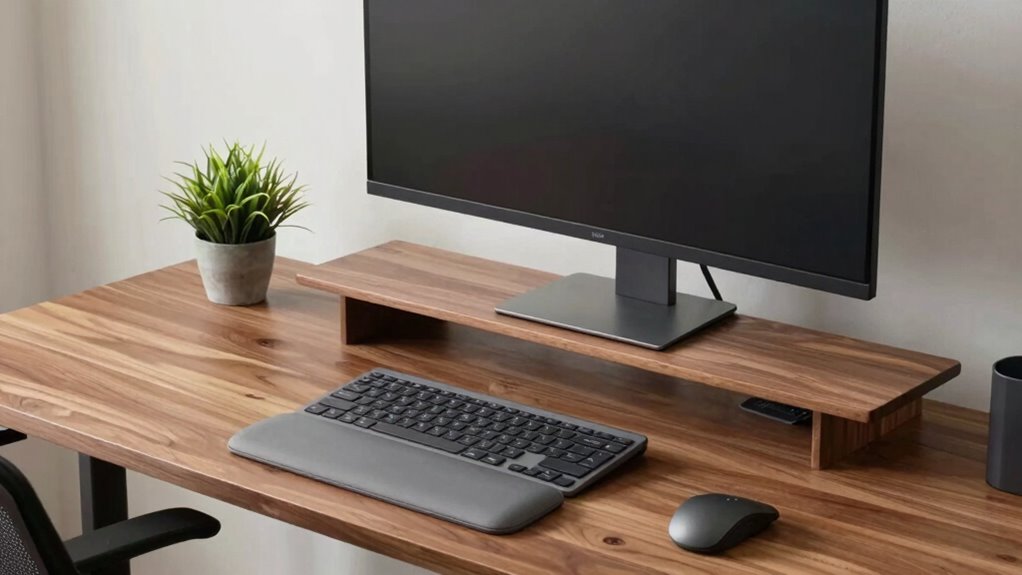
Organizing your workspace effectively can substantially reduce the need to reach or lean forward, making it more comfortable for glasses wearers. Keep essential items within arm’s reach to avoid unnecessary stretching. Prioritize clutter reduction by regularly tidying your desk, which helps you find what you need quickly and maintains focus. Use a simple layout to ensure your monitor, keyboard, and mouse are aligned with your body, reducing awkward postures. Consider this layout for ideal desk organization:
| Item | Positioning |
|---|---|
| Monitor | Eye level, directly in front |
| Keyboard & Mouse | Close to your body, within reach |
| Frequently Used Items | Near your dominant hand |
| Files & Supplies | Off to the side, but accessible |
This setup minimizes reaching and leaning, supporting better posture and eye comfort.
Essential Ergonomic Accessories for Comfortable Screen Viewing
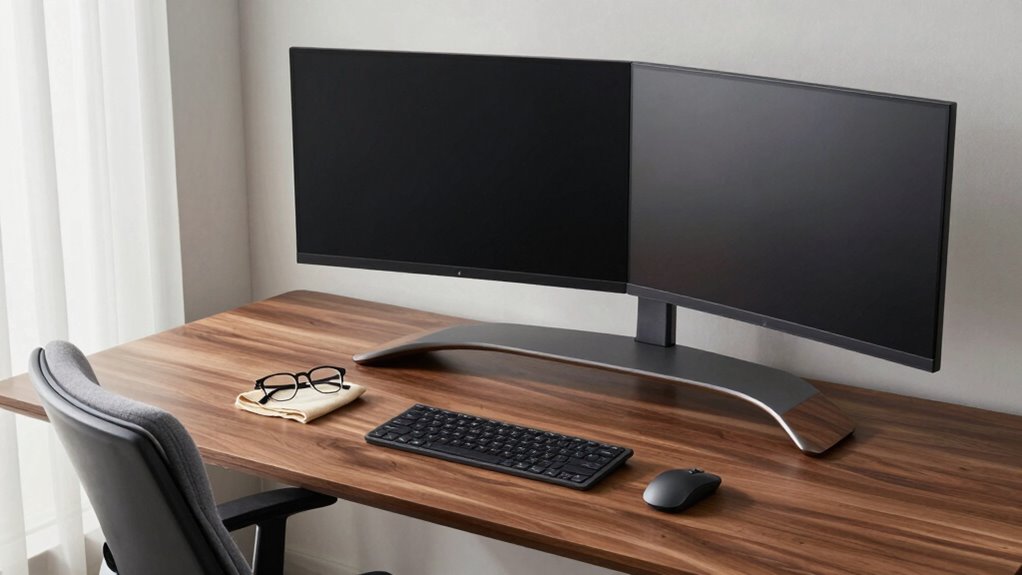
Having the right ergonomic accessories can make a significant difference in how comfortably you view your screen throughout the day. Consider these essentials:
Choosing the right ergonomic accessories enhances comfort and supports proper posture during screen time.
- Blue light filters: These reduce eye strain from prolonged screen exposure, helping prevent fatigue and discomfort.
- Anti-reflective coatings: Applying these coatings to your glasses minimizes glare, ensuring clearer vision and less eye strain.
- Adjustable monitor stands: These allow you to position your screen at eye level, preventing neck strain and encouraging proper posture.
How to Position Your Screen to Prevent Head Tilting
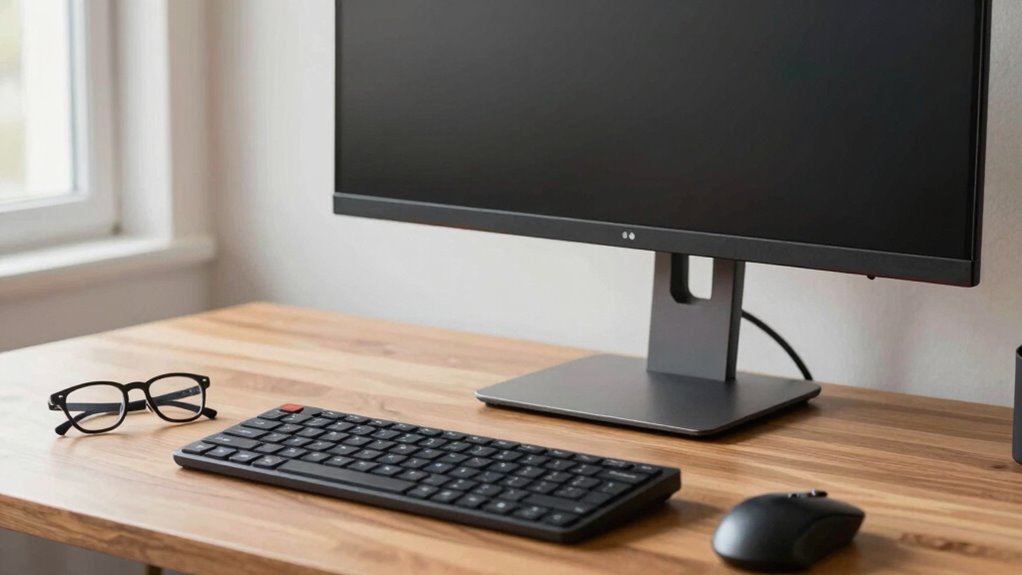
Positioning your screen correctly is key to preventing head tilting and reducing neck strain. First, ensure your monitor is at eye level, so your glasses prescription aligns with the screen without you needing to tilt your head up or down. This helps you maintain a natural, neutral neck position. Adjust the distance so that you can comfortably see the entire screen without leaning forward, which often exacerbates glare. Minimize screen glare by positioning your monitor away from direct light sources or using an anti-glare filter, so you don’t feel compelled to lean in closer. Keep your screen directly in front of you to avoid twisting your neck. Proper positioning encourages better posture, lessens eye strain, and helps you stay comfortable throughout your workday.
Tips for Regularly Checking and Adjusting Your Setup
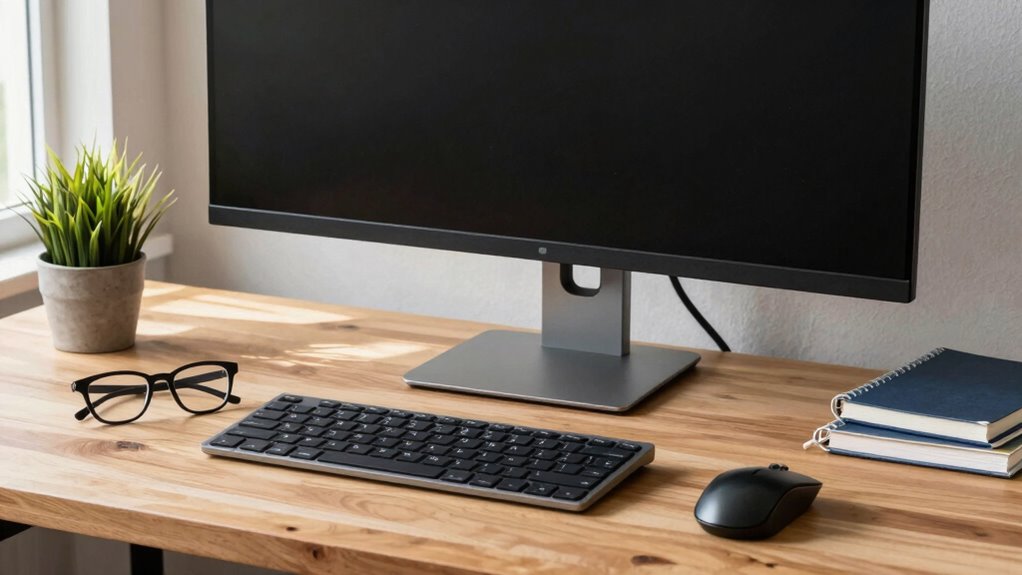
To keep your setup comfortable and avoid strain, you should regularly check and adjust your workspace. This helps prevent eye fatigue and guarantees your glasses or contact lenses work effectively.
- Schedule quick eye exercises throughout the day to relax your eyes and reduce strain.
- Periodically evaluate your monitor height and angle; your eyes should be level with the top of the screen.
- Make sure your lighting minimizes glare and reflections, which can cause you to lean forward or squint.
Best Practices to Maintain Good Posture Throughout the Day
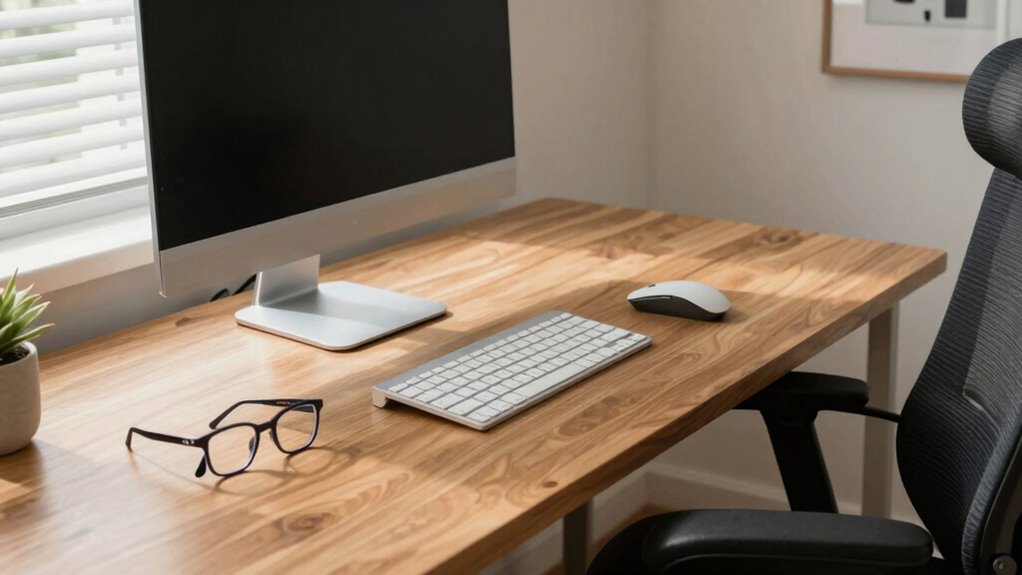
Maintaining good posture while working at your desk is essential to prevent discomfort and long-term health issues. If you wear contact lenses or glasses, make sure your screen is at eye level to avoid leaning forward or tilting your head. Sit back in your chair with your back supported, keeping your feet flat on the floor. Take regular breaks to stretch and reset your posture, especially when exposed to blue light from screens. Use blue light filters or glasses to reduce eye strain, which can cause you to unconsciously lean closer. Keep your monitor an arm’s length away, and avoid craning your neck. Staying mindful of your posture throughout the day helps prevent neck, shoulder, and back pain, and keeps your eyes comfortable and protected.
Frequently Asked Questions
How Often Should I Reassess My Desk Setup for Optimal Comfort?
You should reassess your workspace modifications and do ergonomic assessments every few months or whenever you notice discomfort. Regularly checking your desk setup guarantees your glasses wearers’ posture stays ideal and prevents strain. Pay attention to how you feel during work; if you experience pain or fatigue, it’s time to tweak your ergonomic setup. Staying proactive helps maintain comfort and reduces the risk of long-term issues.
Can Specific Glasses Help Reduce Eye Strain During Extended Screen Time?
Imagine your eyes shielded like a fortress, fighting off digital invasion. Specific glasses with anti-reflective coatings and blue light filters can notably reduce eye strain during long screen sessions. These features decrease glare and block harmful blue light, making your viewing more comfortable. By choosing the right glasses, you can protect your eyesight, stay focused, and prevent fatigue, even during extended periods at your desk.
What Are Signs That My Current Desk Setup Is Causing Discomfort?
If you notice neck or shoulder pain, frequent headaches, or eye strain, your desk setup might be causing discomfort. Poor monitor positioning can lead you to lean forward or strain your eyes. Focus on posture correction by adjusting your monitor to eye level and keeping a comfortable distance. These changes help reduce strain and improve overall comfort, preventing long-term issues from improper setup.
How Do I Balance Screen Brightness With Ambient Lighting Effectively?
Your eyes are the gates to your productivity, so don’t let harsh lighting overwhelm them. To balance screen brightness with ambient light, calibrate your monitor for ideal clarity and use light diffusers around your workspace. Adjust the monitor’s brightness to match ambient lighting, reducing glare and eye strain. This creates a comfortable environment, preventing your eyes from feeling like they’re battling a blinding spotlight every time you look at your screen.
Are There Ergonomic Tips for Working With Multiple Monitors?
You should position your monitors at eye level and keep them directly in front of you to reduce strain. Use monitor placement to make certain each screen is easily accessible without twisting your neck. Additionally, adjust your chair ergonomics, like lumbar support and seat height, so you’re seated comfortably. This setup helps maintain proper posture, prevents leaning in, and keeps your workspace ergonomic and efficient.
Conclusion
Now that you know how to optimize your desk setup, don’t be surprised if your eyes and neck feel a little different tomorrow. But here’s the catch—staying vigilant and adjusting as you go is what truly makes a difference. Are you ready to see if your new setup can finally stop you from leaning in? The real change begins when you commit to these tweaks and keep refining your space. Will you notice the difference soon enough?