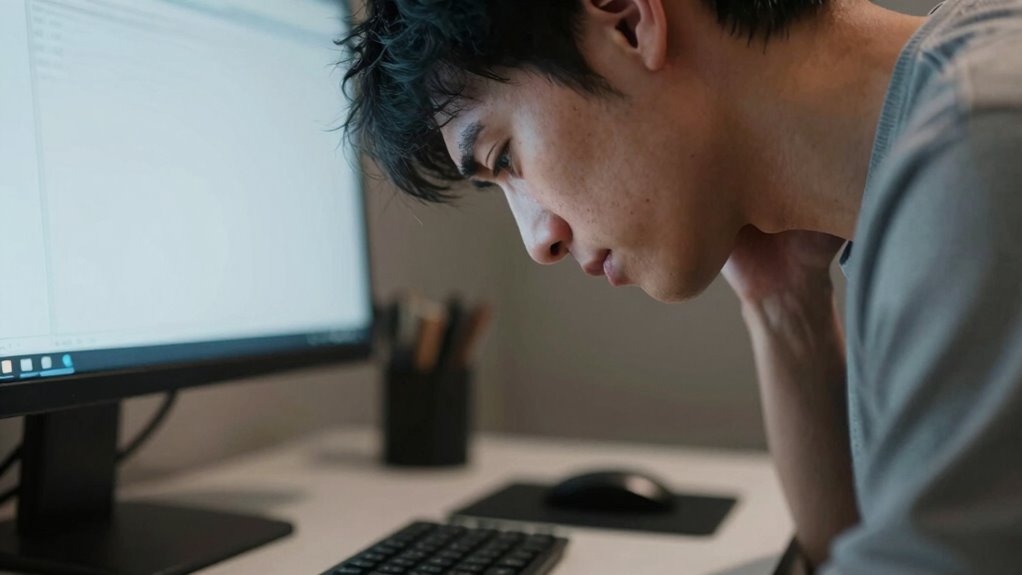

If you keep tilting or lowering your chin while working, your monitor is probably too low. This causes you to lean forward or bend your neck downward, which strains your neck muscles and leads to discomfort. To fix this, check if your monitor is at eye level and adjust it with stands or risers. Continuing to watch your posture can improve comfort and reduce strain, so keep exploring tips that help elevate your screen properly.
Key Takeaways
- You frequently tilt your chin downward to see the screen clearly.
- You find yourself leaning forward or squinting to read content.
- You experience neck strain or discomfort after prolonged work sessions.
- Your monitor is positioned below eye level, causing you to bend your neck downward.
- You need to lift or adjust your monitor to eye level to maintain proper posture.
Signs Your Monitor Is Too Low and Causing Neck Strain

If your monitor is positioned too low, you might notice persistent neck discomfort after long periods of work. One clear sign is feeling constant strain or soreness in your neck muscles, especially after extended use. You may also find yourself frequently tilting or adjusting your head to see the screen clearly. Poor monitor height can lead to poor posture, which worsens discomfort over time. To address this, consider ergonomic accessories like adjustable monitor stands or monitor calibration tools that help set the screen at eye level. These adjustments encourage proper alignment, reducing the need to crane your neck or hunch over. Additionally, proper monitor placement is essential for maintaining good posture and preventing strain. Recognizing these signs early can help you prevent long-term strain and maintain a healthier, more comfortable workspace. Incorporating ergonomic workspace design principles can further promote comfort and reduce the risk of musculoskeletal issues. Ensuring your monitor is at correct eye level can make a significant difference in alleviating neck tension. Proper contrast ratio in your display setup can also improve visual comfort, reducing eye strain during extended use. Regularly adjusting your workspace to promote ergonomic posture can help sustain comfort over time.
How Low Monitor Height Leads to Head and Neck Discomfort
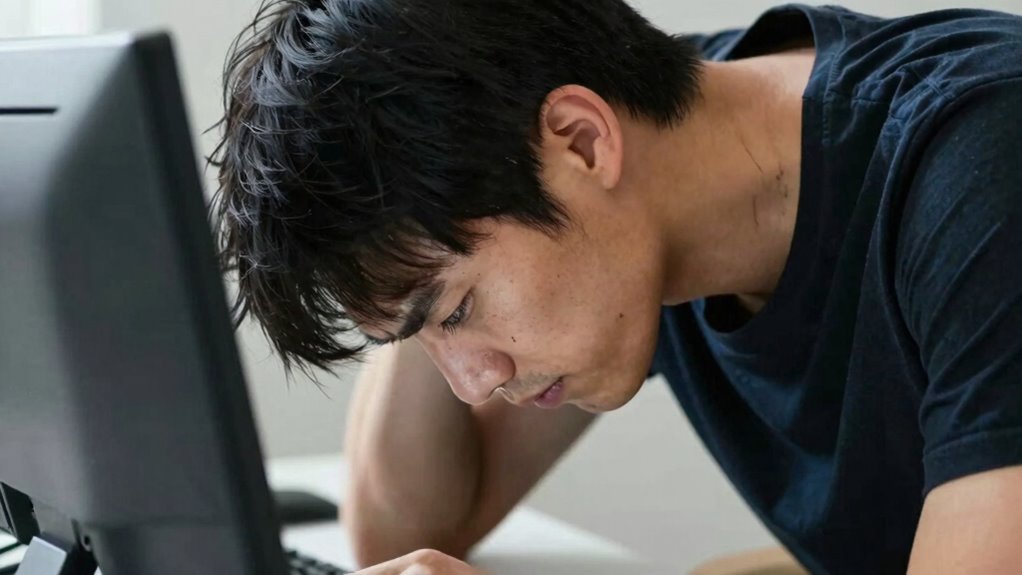
When your monitor sits too low, your neck muscles work harder to keep your head upright, causing strain. Poor posture alignment from a low screen can lead to discomfort in your neck and shoulders. This position also increases tension in your head, making it harder to stay focused and comfortable. Additionally, maintaining improper screen height can impact your overall posture, which is crucial in preventing golf heritage injuries and promoting better ergonomic health. Ensuring correct ergonomic setup helps reduce these issues and supports long-term comfort.
Strained Neck Muscles
A monitor placed too low forces your neck to bend downward constantly, putting strain on the muscles that support your head. This sustained tension can lead to painful, strained neck muscles over time. To ease this discomfort, consider using ergonomic accessories like adjustable monitor stands or risers to bring your screen to eye level. Incorporating simple posture exercises into your daily routine can also strengthen neck muscles and promote better alignment. Avoid lingering in the same position and take regular breaks to stretch and relax tight muscles. Proper monitor height reduces the need for your neck to hold awkward positions, preventing strain and discomfort. Being aware of ergonomic workspace setup can help you make better adjustments for long-term comfort. Ensuring your workspace follows home design/architecture details such as appropriate furniture height can significantly improve your posture during work hours. Additionally, paying attention to ergonomic principles can help optimize your overall workspace to support better health. Making these adjustments helps maintain a healthier, more comfortable posture during long work hours. For example, using adjustable workspace accessories can make quick, effective modifications to your setup.
Poor Posture Alignment
Having your monitor positioned too low causes your head to tilt forward and downward constantly, disrupting proper alignment. This poor posture alignment strains your neck and shoulders over time, leading to discomfort and fatigue. When your screen is too low, you naturally crane your neck to see clearly, which can cause long-term issues if not corrected. Proper desk ergonomics involves adjusting your monitor height so the top of the screen is at eye level, encouraging a neutral head position. By doing so, you promote better posture correction and prevent unnecessary strain on your neck muscles. Maintaining good alignment helps you stay comfortable and reduces the risk of developing chronic discomfort or musculoskeletal issues related to poor ergonomic setup. Adjusting monitor height is essential for creating a safe and comfortable workspace that supports your overall health.
Increased Head Tension
Positioning your monitor too low forces you to tilt your head downward constantly, which increases tension in your neck and shoulders. Over time, this strain leads to headaches and persistent discomfort. To combat this, consider ergonomic accessories like monitor risers or adjustable stands to bring your screen to eye level. This adjustment promotes better posture awareness and reduces muscle strain. Incorporating ergonomic exercises into your routine, such as neck stretches and shoulder rolls, can help release built-up tension. Regular breaks and mindful posture habits also prevent head and neck fatigue. Elevating your monitor and strengthening your muscles can markedly decrease increased head tension, making your workspace more comfortable and reducing the risk of long-term discomfort. Additionally, understanding home soundproofing can help create a quieter environment that minimizes distractions and stress, further supporting overall well-being. Proper monitor positioning also plays a crucial role in minimizing musculoskeletal issues, ensuring long-term comfort and health.
Easy Ways to Check if Your Monitor Is at the Right Height

To make certain your monitor is at the right height, start by aligning the top of the screen with your eye level. Keep a proper viewing distance to reduce eye strain, and consider using ergonomic tools like adjustable stands or monitor arms. These simple checks can make a big difference in comfort and posture. Additionally, ensure your portable oil radiator is used safely and correctly to prevent accidents when working at your desk. Being aware of ergonomic workspace design can further enhance your comfort and reduce fatigue during long periods of work.
Eye Level Alignment
Ensuring your monitor is at eye level is one of the simplest ways to reduce neck strain and improve comfort. To achieve this, start by sitting at your ergonomic desk and checking your monitor’s position. Your eyes should naturally fall onto the top third of the screen when you look straight ahead. You can perform a quick test by placing a mirror behind your monitor or using a monitor calibration tool to guarantee alignment. Adjust the height by raising or lowering the monitor stand or using a monitor riser if needed. Proper eye level alignment helps prevent you from tilting your head up or down constantly, reducing fatigue and promoting better posture throughout the day. Additionally, ergonomic workspace design can further support your visual health by creating an environment that encourages healthy habits. Recognizing inclusive casting can also help ensure a diverse and welcoming workspace that supports ergonomic and visual health for all users. Paying attention to cabling solutions and maintaining proper monitor placement can prevent unnecessary adjustments and discomfort over time. Incorporating proper lighting can also minimize glare and reflections, enhancing your overall ergonomic setup. Being aware of visual ergonomics principles can optimize your workspace and prevent long-term discomfort.
Proper Viewing Distance
How can you tell if your monitor is at the right height? The key is proper viewing distance, which affects your comfort and posture. To check, sit back comfortably and look at your screen. If you find yourself leaning forward or squinting, your monitor placement might be off. Use ergonomic accessories like adjustable stands to fine-tune height and distance easily. Here are four signs your monitor is correctly positioned: 1. Your eyes are level with the top third of the screen. 2. You can read text without straining or leaning in. 3. Your neck stays straight, not tilted or bent. 4. You feel relaxed and focused, not fatigued. Maintaining the right viewing distance ensures your monitor isn’t too close or far, reducing strain and improving ergonomics. Additionally, ensuring your monitor is at the proper height can help prevent posture issues and promote overall comfort during extended use.
Use of Ergonomic Tools
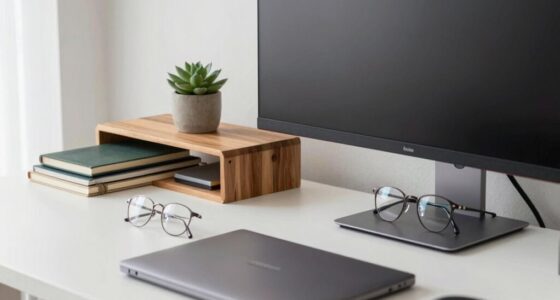
Wondering if your monitor is at the right height? Using ergonomic accessories can make a big difference. Consider adjustable monitor stands or risers to elevate your screen to eye level. These tools help align your monitor with your natural line of sight, reducing neck strain. Check your desk height as well—your keyboard and mouse should be positioned so your elbows stay close to your body and your wrists remain straight. If your monitor feels too low, it might cause you to tilt your chin up or down, leading to discomfort. Simple ergonomic tools allow you to customize your workspace easily, ensuring your monitor is at the ideal height. Regularly verifying your setup can help prevent posture-related issues and improve overall comfort. Incorporating ergonomic accessories into your workspace is an easy way to promote better posture and prevent strain. With the right setup, you’ll improve comfort and decrease the risk of neck and shoulder pain. Using adjustable stands can further enhance your ergonomic setup and support healthy posture.
Simple Tips to Adjust Your Monitor for Better Posture
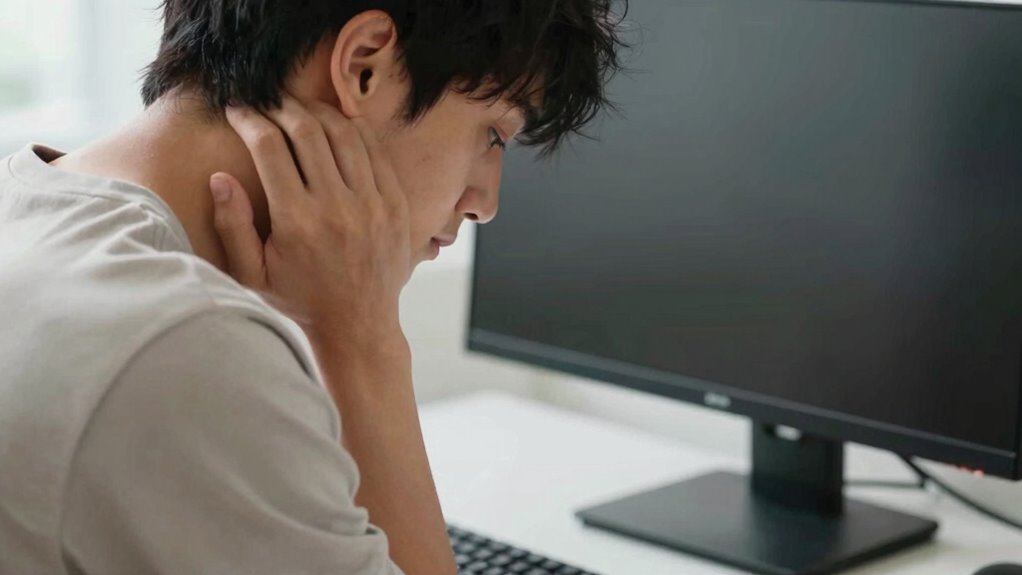
To improve your posture, start by positioning your monitor so that the top of the screen is at or just below eye level. This simple adjustment makes a big difference in reducing neck strain and keeping your chin aligned. Use ergonomic accessories like monitor risers or adjustable stands to elevate your screen easily. When setting up your desk, ensure your monitor is directly in front of you, about an arm’s length away. Here are four tips to help:
- Raise your monitor to eye level for a natural head position.
- Keep your screen centered to avoid twisting your neck.
- Adjust the tilt for a glare-free view.
- Organize your desk setup to minimize reaching and awkward postures.
These small tweaks can dramatically improve your comfort and posture throughout the day.
Benefits of Proper Monitor Position for Your Health and Productivity

Proper monitor positioning enhances both your health and productivity by reducing physical strain and increasing focus. When you position your monitor correctly, you decrease neck, shoulder, and eye discomfort, making long work sessions more comfortable. Using ergonomic accessories like monitor stands can help achieve ideal monitor placement, aligning your screen at eye level. This setup minimizes the tendency to lean or crane your neck, preventing strain and improving posture. Proper monitor placement also boosts productivity by reducing distractions caused by discomfort or poor visibility. Consider this table to visualize key benefits:
| Benefit | How It Helps | Recommended Solution |
|---|---|---|
| Reduced strain | Less neck and eye fatigue | Adjustable monitor stands |
| Increased focus | Less discomfort, more alert | Proper monitor placement |
| Better posture | Prevents long-term issues | Ergonomic accessories |
Next Steps: Tools and Tips to Keep Your Monitor at the Perfect Height
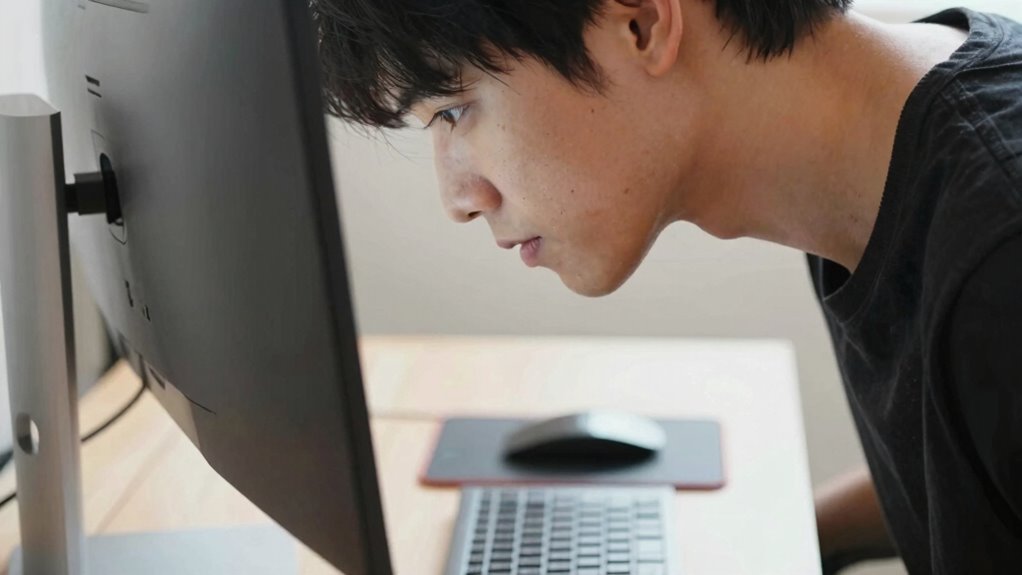
Achieving the ideal monitor height requires the right tools and practical tips to make adjustments straightforward. Start by investing in ergonomic accessories like adjustable monitor stands or risers, which help you customize monitor placement easily. Use a wall mount or adjustable arm to give you more control over height and angle. Keep these tips in mind:
- Elevate your monitor so the top is at eye level—no more straining your neck.
- Align your monitor directly in front of you to reduce unnecessary head turns.
- Secure ergonomic accessories firmly to prevent slips that could compromise your posture.
- Regularly check and adjust your monitor placement to maintain ideal comfort and avoid long-term pain.
These tools and tips empower you to create a healthier, more productive workspace.
Frequently Asked Questions
How Does Monitor Height Affect Eye Health?
When your monitor is positioned too low, it causes eye strain and neck pain because you have to look down constantly. This poor setup forces your eyes to work harder and strains your neck muscles. To prevent this, adjust your monitor to eye level, so your eyes look straight ahead. Proper monitor height helps reduce eye strain and neck discomfort, keeping you more comfortable and focused during long hours of work.
What Are the Long-Term Effects of Poor Monitor Positioning?
Poor monitor positioning can lead to long-term effects like ergonomic misalignment and neck strain. When you keep your monitor too low, you may develop chronic neck pain, shoulder tension, and even spinal issues over time. This misalignment forces you into awkward postures, increasing discomfort and decreasing productivity. To avoid these problems, make certain your monitor is at eye level, promoting proper posture and reducing the risk of long-term musculoskeletal issues.
Can Adjustable Monitor Stands Improve Posture?
Did you know that using adjustable monitor stands can reduce neck strain by up to 50%? Yes, they can considerably improve your posture by allowing ergonomic seating and proper keyboard alignment. When you elevate your monitor to eye level, you prevent slouching and reduce discomfort. Adjustability means you can customize your setup, making it easier to maintain healthy habits and avoid long-term musculoskeletal issues.
What Ergonomic Accessories Can Help Maintain Proper Monitor Height?
You can improve desk ergonomics and maintain proper monitor height with ergonomic accessories like monitor risers or stands. These accessories elevate your screen to eye level, preventing neck strain. Consider adjustable monitor arms for flexible positioning. Using monitor stands or risers helps you stay comfortable during long hours and reduces the need to tilt your chin downward, promoting better posture. Incorporate these monitor accessories into your workspace for a healthier setup.
How Often Should I Reassess My Monitor’s Position?
You should reassess your monitor’s position at least once a month to guarantee ideal desk ergonomics. Regularly check your monitor calibration to maintain proper color and brightness, which reduces eye strain. Adjust your monitor height so that your eyes are level with the top of the screen, preventing neck strain. Frequent reassessment helps you catch any shifts in setup, keeping your workspace comfortable and promoting good posture over time.
Conclusion
Remember, your monitor’s height isn’t just about comfort—it’s the gateway to better health and productivity. If you keep craning your chin or tilting your head, you’re fighting an uphill battle against strain and fatigue. Think of your workspace as a sanctuary where proper posture reigns; aligning your monitor correctly turns this space into a fortress of well-being. Don’t let poor setup be the silent thief of your focus—adjust today and watch your posture improve tomorrow.