When choosing an ultrawide monitor, prioritize adjustable stands with height, tilt, and swivel features to keep the screen at eye level and reduce neck strain. Make sure it has good color calibration for accurate visuals, especially if you work in design or editing. Position the monitor directly in front of you, at arm’s length, and use proper lighting and glare reduction techniques. If you keep these factors in mind, you’ll set up your workspace for maximum comfort and efficiency—more details ahead.

Get comfort and recovery gear delivered free — and shop member deals
- Fast, free delivery on millions of items
- Access to Prime Big Deal Days deals on October 6–7
- Prime Video, Amazon Music and more included
Key Takeaways
- Choose an adjustable monitor stand or arm for height, tilt, and swivel to align the ultrawide screen with your eye level.
- Ensure proper positioning by placing the monitor directly in front at arm’s length, with the top at or below eye level.
- Calibrate color settings accurately for visual clarity and reduced eye strain, especially important for creative work.
- Minimize glare and reflections with appropriate lighting and anti-reflective screen coatings for extended use comfort.
- Incorporate ergonomic workspace setup, including accessories like adjustable arms, to support prolonged use without discomfort.

Ultrawide monitors offer immersive viewing experiences and increased productivity, but to truly benefit from them, you need to prioritize proper ergonomics. When choosing an ultrawide display, consider how you’ll set it up to reduce strain and maximize comfort. First, pay attention to the monitor’s stand adjustability. A stand that allows you to modify height, tilt, and swivel ensures you can position the screen at eye level, preventing neck and eye fatigue. Proper stand adjustability lets you customize your viewing angle, keeping your head aligned and reducing unnecessary movement throughout the day. If the stand doesn’t offer enough flexibility, you might need an aftermarket mount or arm that provides more precise control.
Prioritize adjustable stands or mounts to ensure your monitor stays at eye level and reduces neck strain.
Color calibration is another critical factor, especially if you work in fields like graphic design, video editing, or photography. An ultrawide monitor with good color calibration ensures that the colors displayed are accurate and consistent across the screen. This accuracy minimizes eye strain caused by trying to compensate for color inconsistencies and helps you work more efficiently. When setting up your monitor, take the time to calibrate it using built-in controls or external calibration tools. Proper calibration guarantees your workspace’s visual comfort and the quality of your work.
Positioning your ultrawide monitor correctly is equally essential. You should place the screen directly in front of you, about an arm’s length away, with the top of the screen at or just below eye level. This setup prevents you from craning your neck up or down, which can lead to discomfort over extended periods. If your monitor is too large or positioned improperly, you might find yourself constantly turning your head, which adds to fatigue. Using a monitor arm with adjustable height and swivel features can help you fine-tune the position for maximum comfort. Additionally, ergonomic workspace setup is crucial for maintaining comfort during long hours of use. Being aware of your visual ergonomics can further enhance your comfort and reduce eye strain over time. Adjusting your workspace to minimize glare and reflections is also an important aspect of ergonomic setup, ensuring you can focus without unnecessary visual distractions. Incorporating proper lighting into your workspace can further improve overall comfort and reduce eye fatigue during extended use.
adjustable monitor stand for ultrawide monitor
As an affiliate, we earn on qualifying purchases.
As an affiliate, we earn on qualifying purchases.
Frequently Asked Questions
How Do Ultrawide Monitors Impact Eye Health Over Long Periods?
Ultrawide monitors can cause eye strain over long periods if you’re not careful. They emit blue light, which can contribute to fatigue and disrupt sleep. To protect your eyes, you should use blue light filters and take regular breaks to reduce strain. Adjusting brightness and contrast helps, too. Being mindful of these factors guarantees you enjoy your ultrawide monitor without harming your eye health.
What Are the Best Adjustable Features for Ultrawide Monitor Ergonomics?
You need an ultra-adjustable monitor stand that can bend, tilt, swivel, and even rotate 360 degrees to conquer any workspace chaos. Prioritize features like height adjustment for perfect eye level and a stand that supports color calibration for vivid, accurate images. These adjustments prevent strain, boost comfort, and keep your visuals sharp, making your ultrawide monitor not just a tool but an ergonomic powerhouse.
Can Ultrawide Monitors Cause Neck Strain, and How to Prevent It?
Ultrawide monitors can cause neck strain if you don’t optimize monitor placement. To prevent this, position the screen at eye level and keep it directly in front of you. Use ergonomic accessories like adjustable stands or monitor arms to maintain proper posture and reduce strain. Take regular breaks, and avoid looking too far sideways or up and down, ensuring your neck stays relaxed during extended use.
Are There Size Limits for Optimal Ultrawide Monitor Ergonomic Setup?
Is bigger always better? When it comes to ultrawide monitors, size limits depend on your workspace and screen curvature. You’ll want a monitor that fits comfortably on your desk without causing neck strain, so consider bezel size and viewing distance. Typically, a 34-38 inch monitor with gentle curvature offers an ergonomic setup. Beyond that, the screen might be too large, forcing you to strain or turn your head excessively.
How Does Ambient Lighting Affect Ultrawide Monitor Ergonomics?
Ambient lighting considerably impacts your ultrawide monitor ergonomics by reducing eye strain and enhancing visibility. If your room has bright ambient light or harsh glare, it can cause discomfort and make it harder to see details. Adjust your ambient light to match your monitor’s color temperature, aiming for a softer, warmer tone to create a comfortable viewing environment. Proper lighting helps you stay focused and minimizes fatigue during long work sessions.
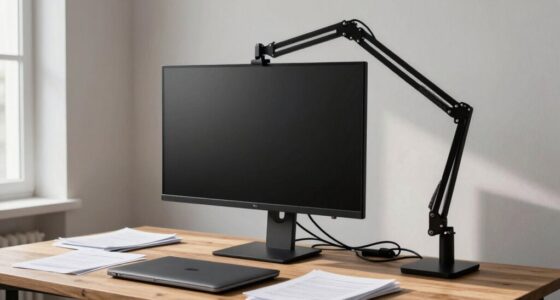
ergonomic monitor arm with height tilt swivel
As an affiliate, we earn on qualifying purchases.
As an affiliate, we earn on qualifying purchases.
Conclusion
By paying attention to ultrawide monitor ergonomics, you’re gently guiding yourself toward a more comfortable and productive setup. Embracing these tips isn’t about restrictions; it’s about creating a space that feels just right. With a few mindful adjustments, you’ll find your work and play become more enjoyable, almost like a quiet conversation with your workspace. So, take these gentle suggestions to heart, and let your new setup softly support your daily needs.
ultrawide monitor color calibration tool
As an affiliate, we earn on qualifying purchases.
As an affiliate, we earn on qualifying purchases.
anti-glare screen protector for ultrawide monitor
As an affiliate, we earn on qualifying purchases.
As an affiliate, we earn on qualifying purchases.
Fall Picks
fall essentials
As an affiliate, we earn on qualifying purchases.