The sweet spot most people miss for ultrawide monitor positioning is having the top of the screen at or slightly below eye level, with a clear view straight ahead to reduce neck strain. You should sit about 1.5 to 2.5 times the monitor’s diagonal distance away, and tilt the screen slightly upward for comfort. Proper adjustments minimize fatigue and boost productivity. Keep exploring to discover more tips for setting up your perfect ultrawide workspace.
Key Takeaways
- Position the top of the monitor at or just below eye level to prevent neck tilting and ensure ergonomic comfort.
- Maintain a viewing distance of 1.5 to 2.5 times the monitor’s diagonal size for optimal immersion and reduced eye strain.
- Tilt the monitor slightly upward (10-20°) to align with natural eye movement and minimize neck and shoulder fatigue.
- Organize your workspace so the monitor is directly in front, reducing twisting and promoting a neutral head position.
- Adjust room lighting and screen angle to minimize glare and reflections, enhancing visual clarity and comfort during long sessions.
Why Proper Ultrawide Monitor Placement Boosts Comfort and Productivity
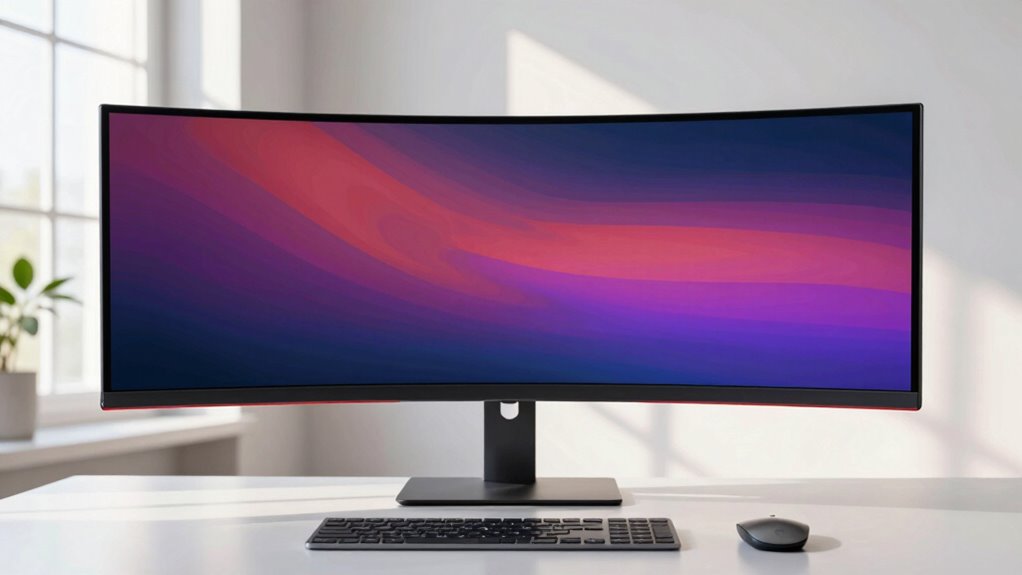
Proper placement of your ultrawide monitor is essential for maximizing comfort and productivity. When positioned correctly, it helps you maintain ergonomic posture, reducing strain on your neck, back, and shoulders. An ideal setup keeps the monitor at eye level, preventing you from tilting or craning your neck, which can lead to discomfort over time. Additionally, proper placement enhances visual clarity by minimizing glare and reflections, allowing you to see details clearly without squinting or leaning in. This not only decreases eye fatigue but also boosts your focus and efficiency. Taking the time to position your ultrawide monitor thoughtfully ensures a healthier workspace, enabling you to work longer comfortably while maintaining high productivity levels. Incorporating ergonomic principles into your monitor positioning can further improve your overall workspace health. Recognizing the importance of visual ergonomics can help prevent long-term strain and enhance your overall comfort. Paying attention to monitor placement can also reduce the need for frequent adjustments and distractions during work.
How to Find the Best Viewing Distance for Ultrawide Monitors
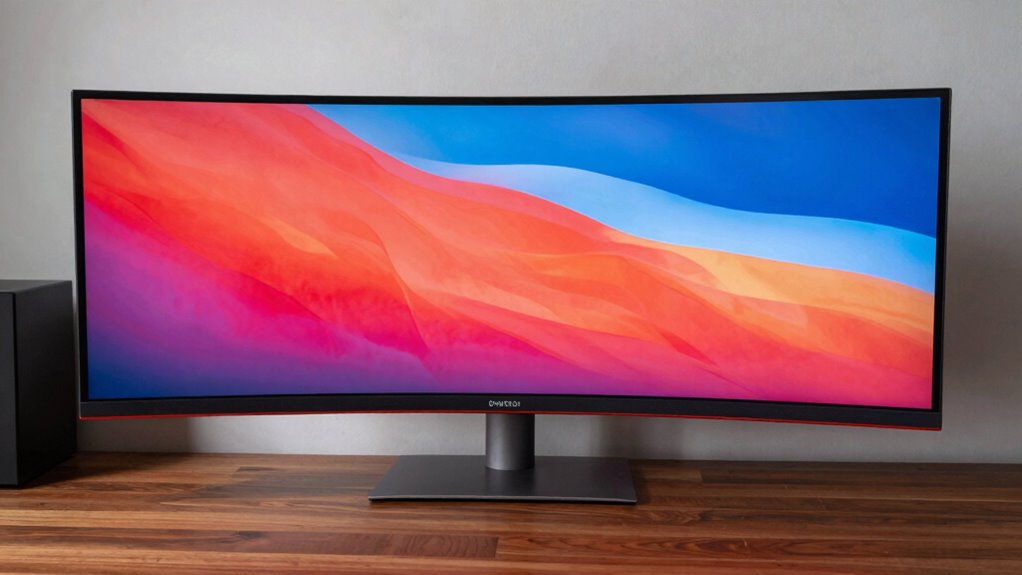
Finding the ideal viewing distance for your ultrawide monitor is key to reducing eye strain and enhancing visual comfort. The monitor’s curvature plays a role in determining how close you should sit, ensuring you can comfortably see the entire screen without excessive head movement. A good rule of thumb is to sit about 1.5 to 2.5 times the diagonal size of your monitor away, adjusting based on curvature. To find your sweet spot, consider these tips:
Find your ideal ultrawide monitor distance by matching curvature and sitting 1.5–2.5 times the screen diagonal away.
- Match your viewing distance to your monitor’s curvature
- Keep your eyes level with the top of the screen
- Avoid sitting too close or too far
- Experiment with small adjustments
- Use your peripheral vision to gauge comfort
- Remember that color accuracy impacts how vivid and comfortable your viewing experience is over extended periods.
- Additionally, paying attention to ergonomic setup can help prevent long-term discomfort and support healthy viewing habits.
Finding the right viewing distance helps you maximize immersion while minimizing discomfort over long periods.
Setting Your Ultrawide Monitor Height and Tilt for Natural Comfort
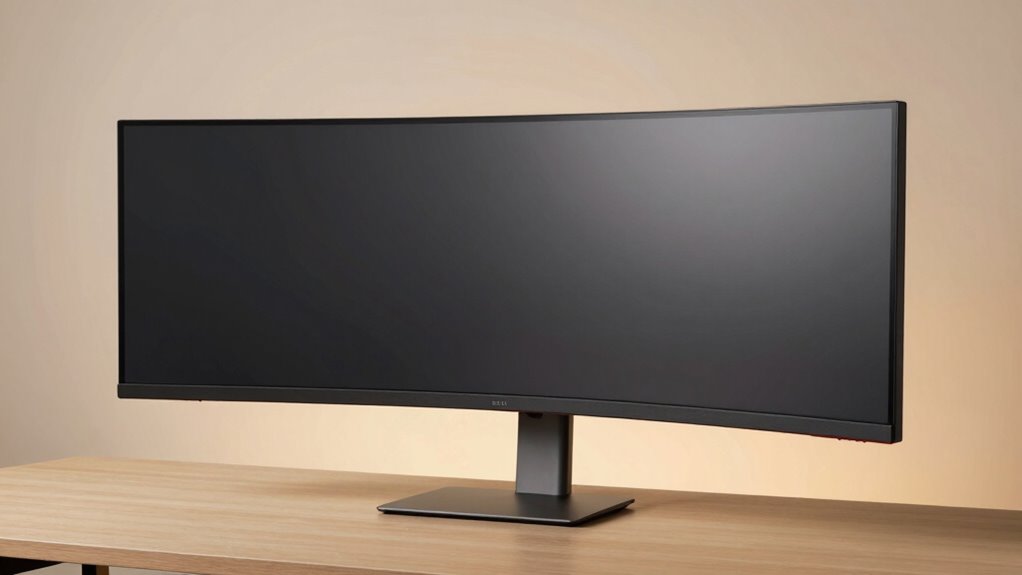
To stay comfortable, your monitor should be eye level so you don’t strain your neck. Adjust the tilt to reduce glare and find a natural viewing angle. Proper positioning helps prevent discomfort and keeps you focused longer. Additionally, maintaining the correct portable oil radiator safety practices can ensure a safer workspace when using such devices nearby.
Eye Level Alignment
Ensuring your ultrawide monitor is at eye level is crucial for reducing strain and maintaining comfort during long sessions. Proper eye level alignment promotes visual comfort and ergonomic alignment, preventing neck and eye fatigue. To achieve this, make sure the top of your screen is roughly at or just below eye level. Consider these tips:
- Adjust your monitor height so your eyes naturally gaze slightly downward.
- Keep the monitor centered in your line of sight.
- Use a monitor stand or riser if needed.
- Maintain a comfortable distance, about an arm’s length.
- Ensure the monitor’s surface is perpendicular to your line of sight.
- Adjusting monitor position based on ergonomic principles can further enhance comfort during extended use. Proper monitor positioning also helps prevent repetitive strain injuries and supports overall ergonomic health. Additionally, regularly taking breaks and practicing good posture can further reduce fatigue and improve your workspace comfort.
Aligning your screen correctly minimizes unnecessary head movements and supports healthier posture, making long work or gaming sessions more comfortable and less tiring.
Optimal Tilt Angle
Adjusting your monitor’s tilt angle is essential for achieving natural comfort and reducing strain. When you set the tilt correctly, you promote better ergonomic posture and improve visual ergonomics, minimizing eye fatigue. Ideally, your monitor should be tilted slightly upward, about 10 to 20 degrees, so you can look at the screen with a relaxed neck and shoulders. This angle ensures your eyes are aligned with the top third of the display, reducing the need to tilt your head or strain your neck. Proper tilt also helps prevent glare from overhead lights and reflections, supporting a comfortable viewing experience. Regularly check and fine-tune the tilt to match your seated position, keeping your head and neck relaxed and your posture ergonomic throughout your work session. Additionally, monitor placement plays a crucial role in ensuring your setup remains comfortable over extended periods. Maintaining an appropriate ergonomic setup can significantly enhance your overall comfort and productivity during long hours of work. Being mindful of monitor angle adjustments can also help prevent long-term musculoskeletal issues. Furthermore, understanding the correct tilt angle can contribute to reducing overall fatigue and discomfort during prolonged use. Incorporating sound healing science principles, such as adjusting your environment to include calming sounds, can also improve focus and reduce stress during work.
Avoiding Neck Strain
Properly setting your ultrawide monitor’s height and tilt can prevent neck strain during long hours at your desk. To do this, position the top of your screen at or just below eye level, so you avoid tilting your head up or down. Keep your monitor directly in front of you to reduce twisting your neck. Maintain an ergonomic wrist position by keeping your keyboard and mouse at a comfortable height, which supports better desk organization. Adjust tilt to ensure the screen’s angle reduces glare and minimizes eye and neck tension. Additionally, consider these tips:
- Use a monitor stand or riser for ideal height
- Keep your monitor centered in your field of view
- Maintain a neutral head position
- Align your monitor with your ergonomic wrist setup
- Organize your desk to minimize reaching or awkward postures
- Incorporating ergonomic setups can further enhance your comfort and prevent strain during extended use, especially when considering optimal monitor positioning for sustained productivity. Ensuring your workspace follows proper ergonomic principles can make a significant difference in reducing discomfort and improving overall health.
Implementing these ergonomic principles can also help prevent long-term musculoskeletal issues associated with poor monitor placement.
Common Mistakes to Avoid When Positioning Your Ultrawide Display
One common mistake to avoid when positioning your ultrawide display is placing it too high or too low, which can lead to neck strain and discomfort over time. To maintain ergonomic posture, verify the top of your screen is at or just below eye level. Incorrect height forces you to tilt or crane your neck, causing fatigue. Additionally, neglecting proper monitor calibration can lead to distorted colors and poor image clarity, making it harder to focus and adding strain. Always adjust your display’s tilt and height for comfort, and calibrate the monitor to ensure accurate visuals. Avoiding these mistakes helps you stay comfortable during long work sessions and prevents long-term health issues related to improper monitor positioning. Paying attention to ergonomic principles can further enhance your setup and prevent discomfort. Also, consider proper monitor setup techniques that optimize your viewing experience and reduce eye strain over extended periods.
Choosing the Right Curvature and Distance for Immersive Viewing
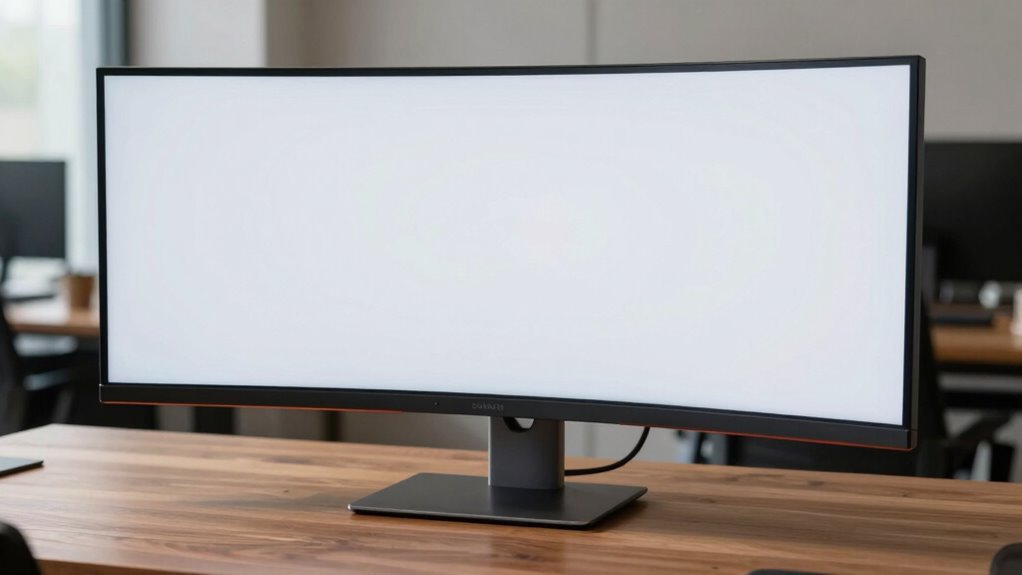
Choosing the right curvature and distance for your ultrawide monitor can substantially enhance your viewing experience by creating a more immersive environment. Proper curvature selection guarantees the screen wraps around your field of view, reducing eye strain and distortion. Your ideal viewing distance depends on your monitor’s size and curvature; generally, sitting about an arm’s length away works best. Keep in mind:
- Select a curvature that matches your desk setup and viewing habits
- Maintain a consistent viewing distance for uniform immersion
- Adjust the monitor’s tilt to complement your natural line of sight
- Avoid sitting too close, which can cause distortion
- Experiment with different distances to find your comfort zone
How to Minimize Glare and Distortion on Your Ultrawide Screen
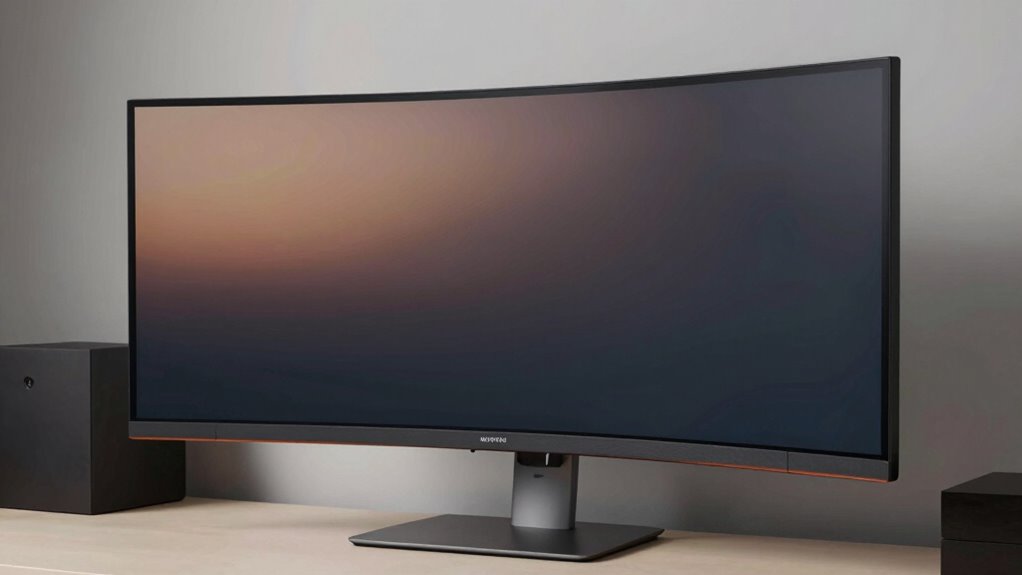
Adjust your screen angle to reduce reflections and keep glare away from your eyes. Make sure your room lighting minimizes direct light hitting the screen, which can cause distortion. Properly positioning your monitor and controlling lighting are key to a clear, comfortable viewing experience.
Optimal Screen Angle
To minimize glare and distortion on your ultrawide screen, finding the most favorable screen angle is crucial. An ideal angle reduces reflections, enhances visual comfort, and supports ergonomic posture. To achieve this, consider adjusting your monitor so that the top edge is slightly tilted away from you, about 10-20 degrees. Keep these points in mind:
- Position the screen perpendicular to your line of sight
- Tilt the monitor to avoid direct reflections from windows or lights
- Elevate the monitor to ensure a neutral neck position
- Maintain a consistent angle to prevent distortion
- Regularly revisit your setup for comfort and glare reduction
Making these adjustments helps your eyes relax, reduces strain, and promotes better posture, ensuring long-term ergonomic benefits and clearer visuals.
Proper Room Lighting
Proper room lighting plays a vital role in minimizing glare and distortion on your ultrawide screen. Too much ambient light can cause reflections, making it harder to see details clearly, while insufficient lighting can strain your eyes. Aim for balanced lighting that avoids direct light hitting your screen. Use adjustable ambient light sources, like soft lamps or dimmable fixtures, to create a comfortable environment. Pay attention to color temperature; warmer tones (around 2700K-3000K) reduce eye strain and reduce harsh reflections, whereas cooler temperatures can increase glare. Position lights to minimize direct reflections on the screen surface, and consider using matte screen protectors if necessary. Proper room lighting guarantees your ultrawide monitor remains clear and easy on your eyes during extended use.
Adjusting Your Desk and Chair for the Perfect Ultrawide Setup
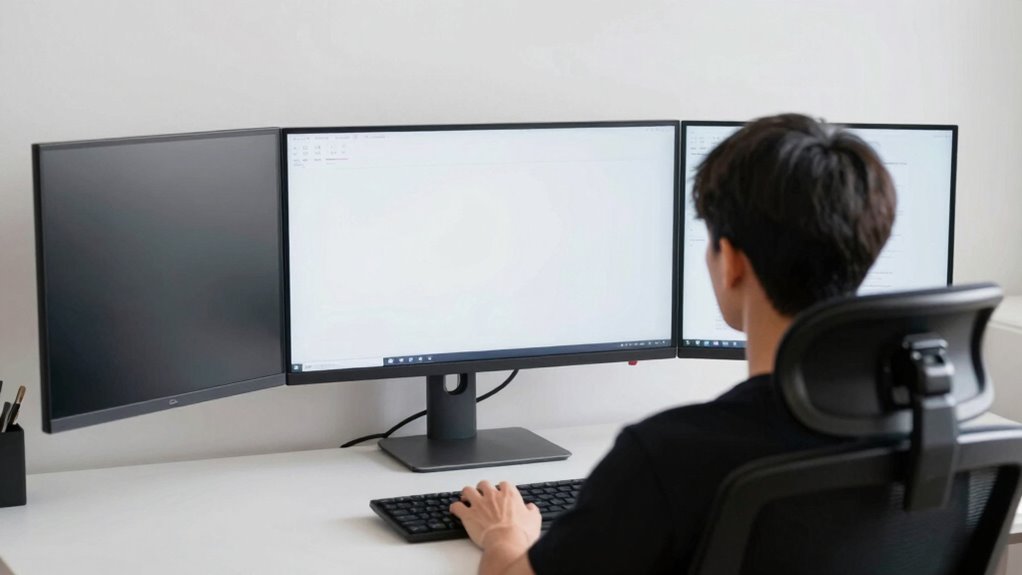
Setting up your desk and chair correctly is essential to fully enjoy the benefits of an ultrawide monitor. Proper ergonomics prevent strain and boost productivity. Start by adjusting your chair height so your feet rest flat on the floor and your knees are at a 90-degree angle. Confirm your monitor is at eye level to avoid neck strain. Use ergonomic accessories like a wrist pad or monitor stand for comfort. Keep your desk organized to reduce clutter, allowing smooth movement and better focus. Consider these tips:
- Adjust chair height for optimal eye level
- Use ergonomic accessories to support wrists and neck
- Position the monitor directly in front of you
- Maintain a clean, organized desk for easy access
- Keep your feet flat on the floor for stability
Proper desk setup enhances your ultrawide experience and reduces discomfort.
Using Calibration Software to Enhance Your Ultrawide Display Quality
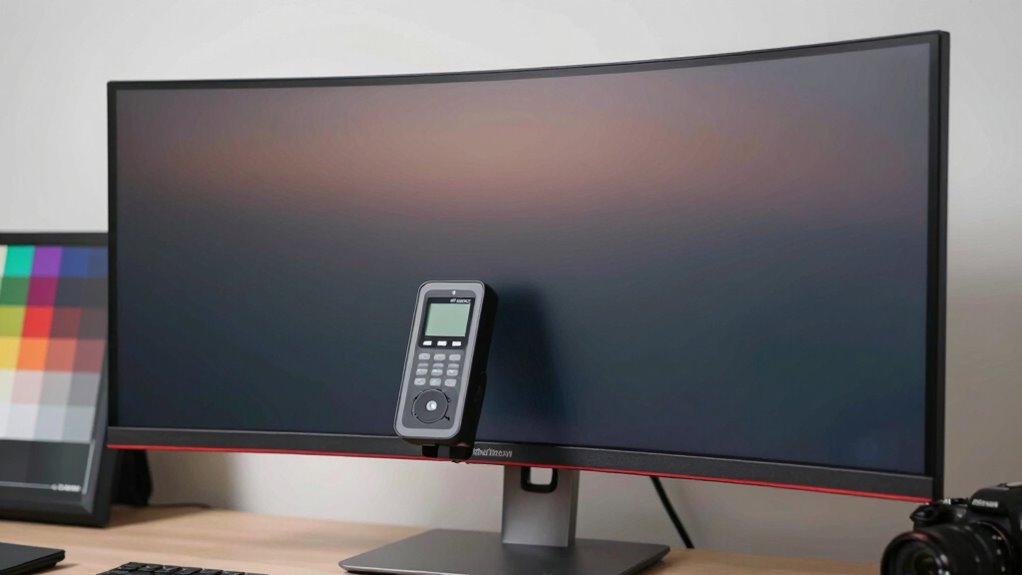
Calibration software is essential for optimizing the visual quality of your ultrawide monitor, guaranteeing colors, contrast, and brightness are accurate and consistent. With proper software tuning, you can fine-tune your display to match your environment and preferences, eliminating color inaccuracies or washed-out images. Start by using calibration tools to perform color calibration, which adjusts the monitor’s color profile for true-to-life visuals. Many programs also allow you to calibrate gamma, luminance, and contrast levels, giving you control over the overall picture quality. Regular calibration ensures your ultrawide’s display remains sharp and true to color over time. Whether for professional work or immersive viewing, investing in calibration software helps you access your monitor’s full potential and achieve a visually balanced, accurate display.
Tips for Gaming, Design, and Multitasking With Ultrawide Monitors

Ultrawide monitors can considerably enhance your gaming, design, and multitasking experiences by providing a broader field of view and improved workspace organization. To maximize these benefits, focus on proper setup. Make sure your display is well color calibrated for accurate visuals during design work and gaming. Manage cables neatly to prevent clutter, which can distract and impede your workflow. Adjust the monitor’s position to reduce glare and eye strain, keeping it at eye level and within your natural line of sight. Consider using software tools to split screens effectively for multitasking. Finally, explore in-game or design-specific settings to optimize performance and visual clarity. These tips help you leverage your ultrawide monitor’s full potential for every activity.
Troubleshooting Common Ultrawide Placement Problems
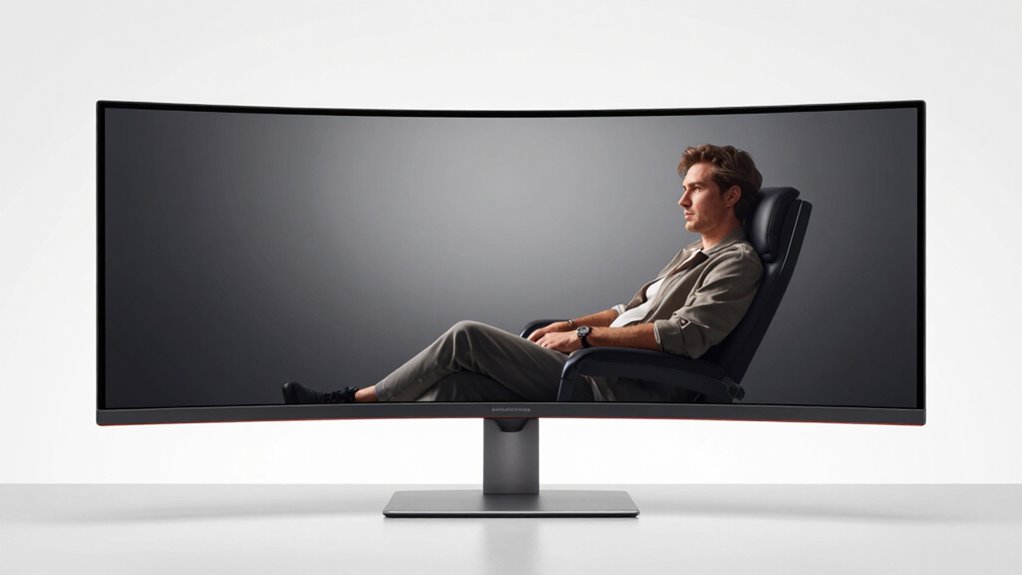
One common issue with ultrawide monitors is poor placement that leads to discomfort or visual distortions. To fix this, consider adjusting your monitor’s height, distance, and angle for ideal ergonomics. Using ergonomic accessories like adjustable stands or monitor arms can help achieve this. Also, ensure your setup is aesthetic by hiding cables and aligning your monitor with your eye level. Here’s a quick guide:
| Problem | Solution |
|---|---|
| Eye strain from too close or high monitor | Use an adjustable arm for precise positioning |
| Distorted image at edges | Calibrate display settings and check mounting |
| Discomfort from poor ergonomics | Add ergonomic accessories for support |
| Cluttered aesthetic setup | Organize cables and choose sleek stands |
Frequently Asked Questions
What Is the Optimal Monitor Curvature for Different Tasks?
For ideal performance, choose curvature preferences based on your tasks. For gaming and immersive experiences, go for a steeper curve around 1500R to 1800R, which enhances peripheral vision. For productivity or multitasking, task specific curves like 1900R or 2000R reduce eye strain and provide a broader view. Adjust the monitor’s curvature to match your workflows, ensuring comfort and efficiency with the ideal task specific curves.
How Do I Prevent Neck Strain With Ultrawide Monitors?
To prevent neck strain with ultrawide monitors, you should prioritize ergonomic seating and monitor height adjustment. Sit with your back supported and your eyes level with the top of the screen. Position the monitor so that you don’t have to tilt your head or stretch your neck. Adjust the height and angle frequently, and take regular breaks to stretch, ensuring comfort during long work sessions.
Can Multiple Ultrawide Monitors Be Positioned for Seamless Workflow?
Did you know 78% of users find multi-monitor setups boost productivity? You can position multiple ultrawide monitors for seamless workflow by carefully managing multi monitor alignment and bezel management. Guarantee the screens are at the same height and angle to prevent gaps that disrupt your view. Use monitor mounts or stands to minimize bezels’ distraction, creating a unified workspace that feels like a single, expansive screen.
What Accessories Improve Ultrawide Monitor Ergonomics?
You can improve your ultrawide monitor ergonomics with a sturdy monitor arm, allowing you to adjust height, tilt, and distance for comfort. Adding an anti-glare screen reduces reflections, minimizing eye strain. These accessories help you find the perfect viewing angle and position, making long hours more comfortable and productive. Investing in quality monitor arms and anti-glare screens guarantees your setup supports your health and workflow effectively.
How Does Room Lighting Affect Ultrawide Monitor Visibility and Accuracy?
Ambient brightness considerably impacts your ultrawide monitor’s visibility and color accuracy. Too much ambient light causes glare, making it hard to see details clearly. To improve this, reduce ambient brightness with curtains or dimmable lights. Use glare reduction techniques like matte screen protectors or adjusting monitor angles. Proper room lighting ensures you get accurate colors and reduces eye strain, making your viewing experience more comfortable and precise.
Conclusion
By paying attention to your ultrawide monitor’s position, you improve your comfort, boost your productivity, and enhance your viewing experience. Adjust your distance to reduce eye strain, refine your height and tilt for natural alignment, and choose the right curvature for immersive visuals. Remember to optimize your desk setup, calibrate your display, and avoid common mistakes. When you fine-tune your placement, you create a workspace that’s comfortable, efficient, and tailored to your needs.