
The one Zoom setup change that helps your neck and shoulders is positioning your webcam at eye level. When your camera is too low or high, it causes you to tilt your head, leading to strain and discomfort. By mounting your webcam directly in front of your face and at eye level, you promote a natural posture and reduce tension during calls. Keep going to discover even more simple ways to improve your ergonomic setup for better comfort.

Get comfort and recovery gear delivered free — and shop member deals
- Fast, free delivery on millions of items
- Access to Prime Big Deal Days deals on October 6–7
- Prime Video, Amazon Music and more included
Key Takeaways
- Position your webcam at eye level to maintain a neutral head and neck posture.
- Use adjustable monitor stands to align the screen’s top third with your eyes.
- Keep your camera directly in front of your face to avoid tilting your head.
- Incorporate ergonomic accessories like keyboard and mouse to support proper posture.
- Adjust your workspace setup to promote upright sitting and reduce shoulder strain.
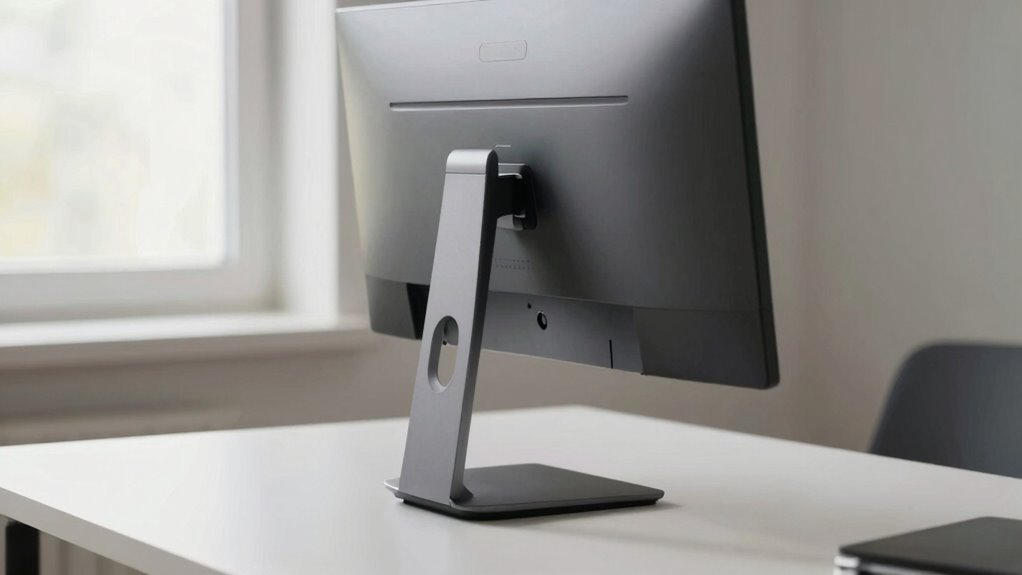
If you’ve been struggling with your Zoom setup, there’s a simple change that can make a big difference. It’s all about how you position yourself and your equipment. The key is to focus on your camera placement and use ergonomic accessories to support better posture. When your camera is too low or too high, you tend to tilt your head or crane your neck, which can lead to discomfort and fatigue over time. By adjusting your camera to eye level, you promote a more natural, relaxed posture that keeps your neck and shoulders happy.
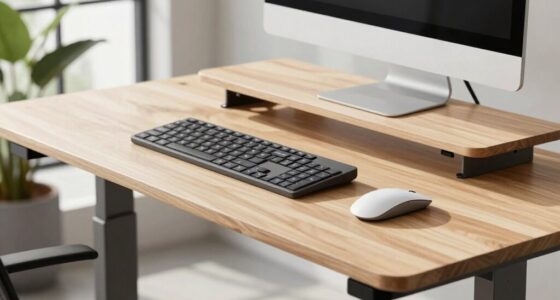
Start by investing in ergonomic accessories like a monitor riser or adjustable stand. These tools help elevate your screen so that your eyes are aligned with the top third of your monitor. When your camera is positioned at eye level, you won’t have to look down or up, reducing strain on your neck. If you’re using a laptop, consider a laptop stand combined with an external keyboard and mouse to bring your entire workspace into a more ergonomic position. This setup encourages you to sit upright rather than slouch or lean forward, which can cause shoulder tension and neck pain. Additionally, setting up your workspace with proper ergonomics can prevent long-term discomfort and promote healthier habits during video calls. Incorporating workplace ergonomics into your routine can also improve your overall comfort and productivity. Being mindful of your ergonomic environment can also help prevent long-term discomfort.
Use ergonomic stands and external accessories to align your screen and promote better posture during Zoom calls.
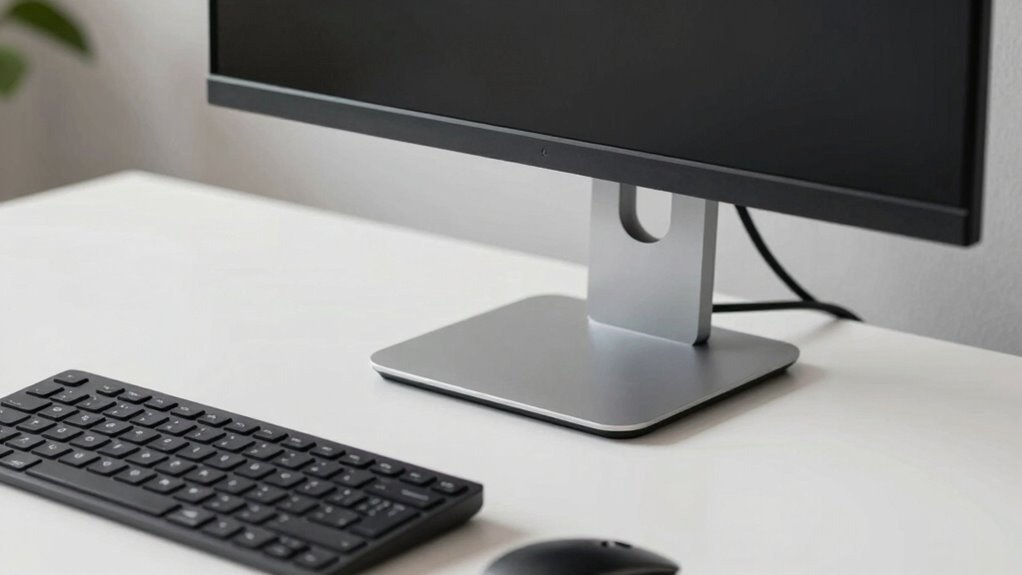
Next, pay attention to your camera placement. Many people place their cameras too low, often on the bottom of their monitors or even on their desks, which causes them to look down during calls. Instead, mount or position your camera directly in front of your face, at about eye level. This might mean using a webcam mount on top of your monitor or a flexible tripod that allows precise positioning. When your camera faces you straight on, you maintain better posture and avoid unnecessary strain. Remember, the goal is to keep your head and neck in a neutral, relaxed position for the duration of your call. Proper workspace setup can significantly enhance your ergonomic comfort and reduce strain over time. Ensuring your entire workspace is aligned with ergonomic principles can make a noticeable difference in long-term comfort. Additionally, paying attention to indoor air quality can further improve your overall health and well-being during extended work sessions.
As an affiliate, we earn on qualifying purchases.
Frequently Asked Questions
Can This Setup Reduce Eye Strain?
Yes, this setup can reduce eye strain by promoting an ergonomic posture and improving visual comfort. When your monitor is positioned at eye level, you avoid tilting your head and straining your neck, which also helps your eyes stay at a natural distance from the screen. This alignment minimizes eye fatigue, making it easier to focus for longer periods and keeping your overall workspace more comfortable.
Does This Change Affect Camera Quality?
This change doesn’t directly affect camera quality, but it can improve your overall video experience. Think of it like fine-tuning a musical instrument—you may not notice the calibration at first, but it enhances clarity. Proper camera calibration and good image stabilization guarantee sharper images and steadier video. So, while your camera’s core quality remains, this setup tweak helps you look better on screen without sacrificing image quality.
Is It Suitable for Small Desks?
Yes, this setup change is suitable for small desks. It involves using ergonomic accessories that optimize your limited desk space, making your workspace more comfortable. You can adjust your monitor height and position without cluttering your desk, helping reduce strain on your neck and shoulders. This setup guarantees you stay productive and comfortable, even in tight spaces, by maximizing your desk space efficiently.
How Often Should I Adjust My Setup?
You should adjust your setup whenever you notice discomfort or your posture starts to slip—think of it as catching two birds with one stone. Regular ergonomic adjustments help maintain proper posture alignment and prevent strain. Aim to review and tweak your workspace every few weeks or when your work habits change. Staying proactive keeps your neck and shoulders happy, and you’ll stay comfortable and productive longer.
Does It Work With Multiple Monitors?
Yes, it works with multiple monitors. To maintain ergonomic posture, you should position your monitors so they are at eye level and close enough to avoid excessive neck movement. Keep them aligned horizontally to reduce strain and place the primary monitor directly in front of you. Proper monitor placement encourages good posture, minimizes neck and shoulder tension, and makes your workspace more comfortable, even with multiple screens.
As an affiliate, we earn on qualifying purchases.
Conclusion
Making this simple adjustment to your Zoom setup can considerably reduce neck and shoulder strain, helping you stay comfortable and focused. Studies show that poor ergonomics can lead to chronic pain, affecting up to 66% of remote workers. By just elevating your laptop or monitor to eye level, you can prevent this discomfort and boost productivity. So, try this quick change today—you’ll notice the difference, and your body will thank you for it.
laptop stand with external keyboard
As an affiliate, we earn on qualifying purchases.
As an affiliate, we earn on qualifying purchases.
camera at eye level for video calls
As an affiliate, we earn on qualifying purchases.
As an affiliate, we earn on qualifying purchases.
Fall Picks
fall essentials
As an affiliate, we earn on qualifying purchases.