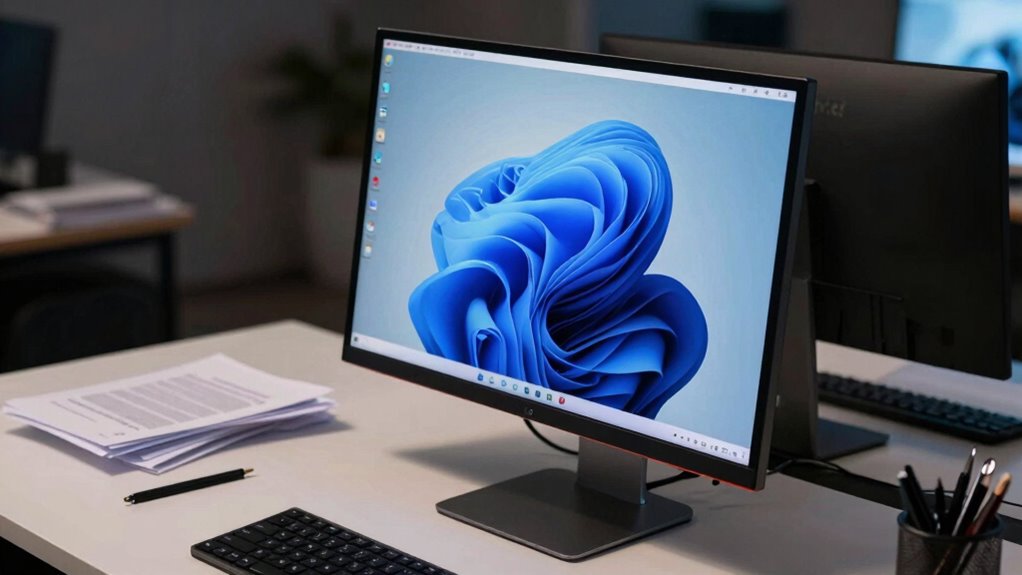

To instantly see if your monitor setup is poor, sit comfortably in your usual workspace, ensuring your eyes align with the top of the screen. Check how easy it is to read the content—if you need to lean forward or squint, your distance isn’t ideal. The correct distance feels natural, with clear text without strain or leaning. Want to know how to adjust it perfectly? Keep exploring for practical tips to improve your comfort and health.

Get comfort and recovery gear delivered free — and shop member deals
- Fast, free delivery on millions of items
- Access to Prime Big Deal Days deals on October 6–7
- Prime Video, Amazon Music and more included
Key Takeaways
- Check if you need to lean forward or squint to read the screen clearly.
- Ensure your eyes are level with the top of the monitor during normal viewing.
- Measure the distance between your eyes and the screen—ideally 20-30 inches.
- Observe if your eyes water, you feel strain, or you experience discomfort while working.
- Verify if you can read text comfortably without leaning in or squinting.
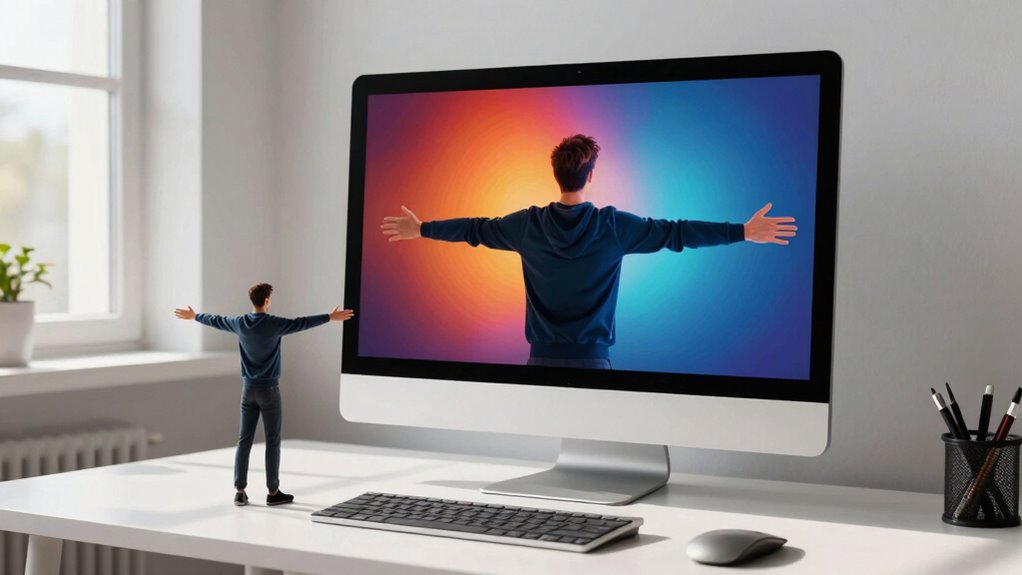
Ever wonder if you’re sitting at the right distance from your screen? Many people overlook this simple factor, yet it plays a crucial role in maintaining good ergonomic posture and preventing eye strain. The good news is that there’s a quick and effective screen distance test that can reveal whether your current setup is causing more harm than good. When you sit too close or too far from your monitor, you unknowingly put extra stress on your eyes and neck, leading to discomfort and fatigue over time.
Check your screen distance to reduce eye strain and improve posture for long hours of comfortable work.
To perform this test, start by sitting comfortably in your usual workspace. Look at your screen and ask yourself: are your eyes level with the top of the monitor? If not, you might need to adjust your chair or monitor height first. Now, focus on the content on your screen. When you’re sitting at an ideal distance, you should be able to read text clearly without straining or leaning forward. If you find yourself squinting, leaning in, or feeling your eyes watering, you’re probably too close. Conversely, if you can’t read the text without leaning forward or moving closer, you’re likely too far away.
A quick way to check the distance is to measure the space between your eyes and the screen. Ideally, this should be about an arm’s length — roughly 20 to 30 inches. If you’re farther than that, you risk unnecessary eye strain because your eyes have to work harder to focus. If you’re much closer, you might develop neck or back discomfort from craning your neck forward or hunching over. Maintaining the correct screen distance is essential for preventing long-term discomfort and promoting better ergonomic habits. Proper monitor placement can help you achieve this ideal setup and enhance your overall comfort. Ensuring your workspace is ergonomically optimized can significantly reduce the risk of repetitive strain injuries. This simple test instantly reveals whether your setup fosters an ergonomic posture or contributes to discomfort.
Adjusting your screen distance is straightforward. Move your monitor closer or farther until you find that sweet spot where text is crisp and comfortable to read without effort. Keep in mind that maintaining this optimal distance encourages a better ergonomic posture, reducing the risk of neck strain and promoting overall comfort during long work hours. Remember, an ergonomic setup isn’t just about the position of your keyboard or chair; your monitor’s distance is equally important. Being mindful of your ergonomic habits can make a significant difference in your daily comfort and health.
As an affiliate, we earn on qualifying purchases.
Frequently Asked Questions
How Often Should I Perform the Screen Distance Test?
You should perform the screen distance test whenever you notice visual discomfort or fatigue. Regularly checking your setup helps identify if ergonomic adjustments are needed to reduce eye strain. If your screen feels too close or far, or your eyes tire easily, do the test again. Making these adjustments frequently guarantees your workspace remains comfortable, preventing long-term issues and maintaining ideal visual health.
What Tools Are Needed for the Test?
Did you know that improper monitor placement can cause eye strain in up to 90% of users? For the test, you’ll need a tape measure or ruler to check the distance, ensuring your monitor is about arm’s length away. It’s also helpful to have a level or a calibration tool to verify your monitor’s height and angle, promoting a better ergonomic setup and ideal viewing comfort.
Can the Test Be Used for Multiple Monitor Setups?
Yes, you can use the screen distance test for multiple monitor setups. It helps you check if each monitor is correctly positioned for ideal ergonomic adjustments, reducing strain and improving calibration. Make sure each screen is at a comfortable distance and angle, ensuring consistent monitor calibration across all displays. Regularly performing this test helps you maintain an ergonomic workspace, preventing discomfort and enhancing your overall viewing experience.
Is There an Ideal Distance for All Screen Sizes?
Yes, there’s an ideal distance for all screen sizes to optimize screen ergonomics and enhance visual comfort. Generally, you should position your screen about arm’s length away, roughly 20-30 inches, depending on the size. Larger screens may require slightly more distance, while smaller screens benefit from being closer. Adjust based on your comfort, ensuring you can view the entire screen without straining your eyes or neck, promoting better ergonomics.
How Do Lighting Conditions Affect the Test Results?
Ambient lighting greatly impacts your screen setup; bright lights can cause glare, making details hard to see. Studies show that glare reduces visual clarity by up to 50%, leading you to strain your eyes. During the test, dimmer lighting improves accuracy, helping you find the ideal distance. Proper lighting, with glare reduction, guarantees you get precise results and a comfortable viewing experience, preventing unnecessary eye fatigue.
As an affiliate, we earn on qualifying purchases.
Conclusion
So, are you really willing to risk eye strain or poor posture just because you didn’t check your screen distance? This simple test can instantly reveal if your setup is off, saving you discomfort down the line. Taking a moment now to get it right can make all the difference in your daily comfort and eye health. Isn’t it worth a quick check to guarantee you’re working smarter, not harder?
As an affiliate, we earn on qualifying purchases.
screen distance measurement tool
As an affiliate, we earn on qualifying purchases.
As an affiliate, we earn on qualifying purchases.
Fall Picks
fall essentials
As an affiliate, we earn on qualifying purchases.