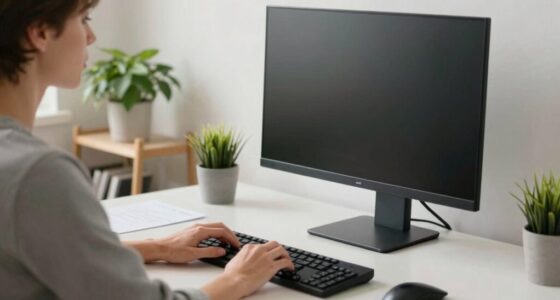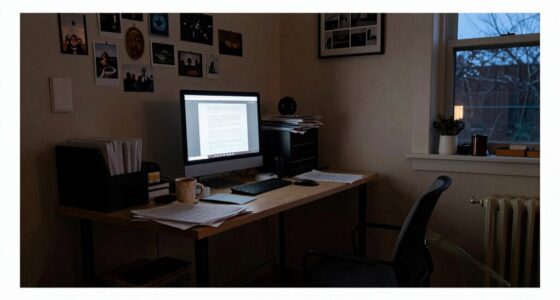

Start with an ergonomic foundation by adjusting your chair for proper lower-back support and setting your desk to a comfortable height. Position your monitor at eye level and directly in front of you, using stands if needed. Keep cables tidy with clips or sleeves to prevent tangles and accidents. Organize your accessories within easy reach and make certain your lighting reduces glare. If you follow these top-down steps, you’ll discover how to create a workspace that promotes comfort and productivity.

Get comfort and recovery gear delivered free with Prime
- Fast, free delivery on millions of items
- Prime Video, Amazon Music and more included
- Member-only deals all year
Key Takeaways
- Ensure monitor placement is at eye level and directly in front to reduce neck strain.
- Adjust desk and chair height for optimal ergonomic posture and comfort.
- Organize cables neatly using clips or sleeves to prevent tangles and hazards.
- Maximize natural light and use glare-free artificial lighting to enhance visual comfort.
- Keep frequently used accessories and supplies within easy reach to minimize unnecessary movements.
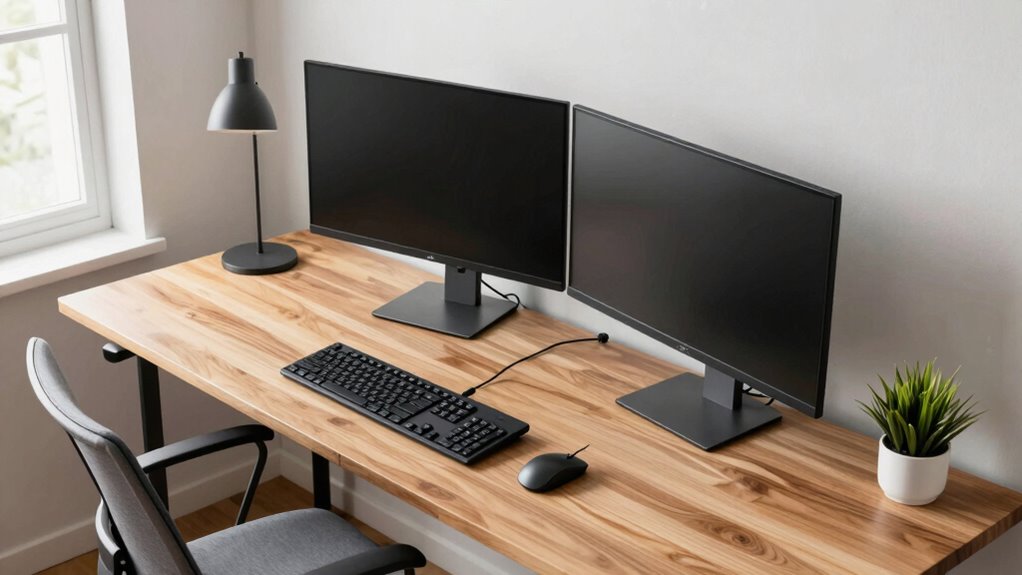
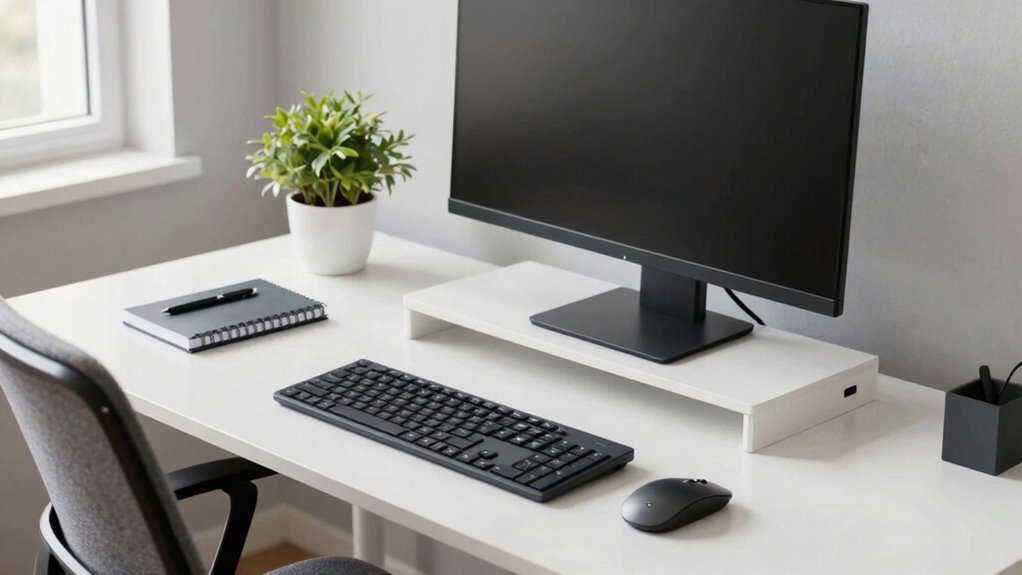
Setting up your workstation properly is essential for productivity and comfort. When you start with a top-down approach, you ensure every element supports your workflow and reduces strain. The first step is to focus on the ergonomic accessories you’ll need. An adjustable chair that supports your lower back, a desk at the right height, and a monitor stand to elevate your screen are foundational. These accessories help maintain good posture, prevent aches, and keep you energized throughout your workday. Once your primary ergonomic tools are in place, you can move on to organizing your workspace for efficiency and safety.
Prioritize ergonomic accessories and proper setup to boost comfort, productivity, and overall well-being at your workstation.
Cable management often gets overlooked, but it’s crucial for a clean, functional setup. Tangles and loose wires can cause accidents, damage equipment, or distract you from work. Use cable clips, sleeves, or under-desk trays to keep cords neatly tucked away. Proper cable management not only enhances aesthetics but also makes it easier to identify and replace devices when needed. It’s worth spending a few minutes to route cables properly, so your workspace stays uncluttered and safe. Additionally, **cable management** can help prevent damage to your equipment and extend its lifespan.
Next, position your monitor to minimize eye strain. Place it directly in front of you, about an arm’s length away, with the top of the screen at or slightly below eye level. This reduces neck and eye fatigue. If you use a laptop, consider a stand paired with an external keyboard and mouse. This setup allows you to maintain an ergonomic posture and keeps your wrists aligned, which is vital for long-term comfort.
Your keyboard and mouse should be positioned so your elbows stay close to your body and your wrists remain straight. Adjust your chair height accordingly, ensuring your feet are flat on the floor or on a footrest. Take a moment to check your lighting; natural light is ideal, but if you’re working in artificial light, make sure it’s bright enough and doesn’t cause glare on your screen. Adjust blinds or use desk lamps to optimize lighting conditions.
Finally, organize your supplies and accessories within easy reach. Keep frequently used items handy to avoid unnecessary stretching or twisting. Use desk organizers to keep clutter off your workspace, which improves focus and efficiency. Additionally, consider ergonomic accessories that support your posture and comfort during long work sessions. When all these elements come together, your workstation becomes an environment that promotes productivity, reduces discomfort, and supports your overall well-being. Starting with a top-down setup ensures nothing gets overlooked, setting the stage for a more effective and comfortable work experience.
ergonomic adjustable office chair
As an affiliate, we earn on qualifying purchases.
As an affiliate, we earn on qualifying purchases.
Frequently Asked Questions
How Often Should I Reassess My Workstation Setup?
You should reassess your workstation setup every few months to maintain ideal workspace organization and lighting. Regular checks help you identify issues like poor lighting enhancement or clutter that can cause discomfort or decrease productivity. Pay attention to how your body feels and adjust your workspace accordingly. By staying proactive, you guarantee your environment remains ergonomic, efficient, and comfortable, supporting your health and work performance over time.
What Ergonomic Accessories Are Most Effective?
Ergonomic accessories like adjustable chairs, monitor risers, and wrist supports are most effective for improving workstation comfort. These accessories help maintain proper posture, reduce strain, and prevent discomfort during long hours. By investing in ergonomic accessories, you create a healthier workspace that promotes productivity and reduces fatigue. Make sure to customize your setup with the right tools, ensuring your workstation supports your body’s needs throughout the workday.
Can a Poor Setup Affect Long-Term Health?
A poor setup can silently sabotage your health, like a crooked mirror distorting your reflection. If you neglect posture correction and lighting adjustments, you might develop chronic neck pain, eye strain, or back issues over time. These issues creep in gradually, making you feel tired and uncomfortable. Ensuring your workspace supports proper posture and ideal lighting safeguards your long-term health, helping you stay productive and pain-free.
How Do I Customize My Workspace for Different Tasks?
You can customize your workspace for different tasks by adjusting desk organization and lighting. Keep your desk clutter-free for focused work, and store tools in easily accessible spots. For lighting, switch between bright illumination for detailed tasks and softer light for relaxed activities. This flexibility helps reduce strain, boost productivity, and keeps your workspace comfortable, allowing you to seamlessly switch between tasks without compromising your health or efficiency.
What Signs Indicate My Workstation Needs an Upgrade?
If your workstation’s like a fading lighthouse, it’s time for an upgrade. Signs include discomfort from your chair, indicating poor chair comfort, or strained eyes due to monitor placement. You notice persistent aches, sluggishness, or difficulty focusing—these are your signals. Upgrading your chair, adjusting monitor height, and optimizing ergonomics can restore your workspace’s guiding light, ensuring your comfort and productivity shine brightly again.
monitor stand for ergonomic setup
As an affiliate, we earn on qualifying purchases.
As an affiliate, we earn on qualifying purchases.
Conclusion
Think of your workstation as a finely tuned orchestra—every element must be in harmony for ideal performance. By following this top-down setup checklist, you’re tuning each instrument for peak productivity and comfort. When your workspace is aligned perfectly, your focus sharpens, and your work flows seamlessly. Remember, a well-structured setup isn’t just a foundation; it’s the conductor that guides your day to success. Start with this checklist, and watch your work hit all the right notes.
cable management clips and sleeves
As an affiliate, we earn on qualifying purchases.
As an affiliate, we earn on qualifying purchases.
As an affiliate, we earn on qualifying purchases.
Halloween Picks
halloween
As an affiliate, we earn on qualifying purchases.